How Experiments Work
An experiment in AIchor represents a single execution of a workload on a compute engine. The code that runs comes from one of two sources: a specific Git commit, or, when submitting through the CLI with a local submit, the local repository contents packaged into an archive. In both cases, the experiment runs using the Docker image and configuration defined in the repository's manifest.yaml.
Some details such as injected environment variables, required image dependencies, and how distribution is set up are specific to the execution runtime being used. See the Execution Runtimes pages for what your code needs to do.
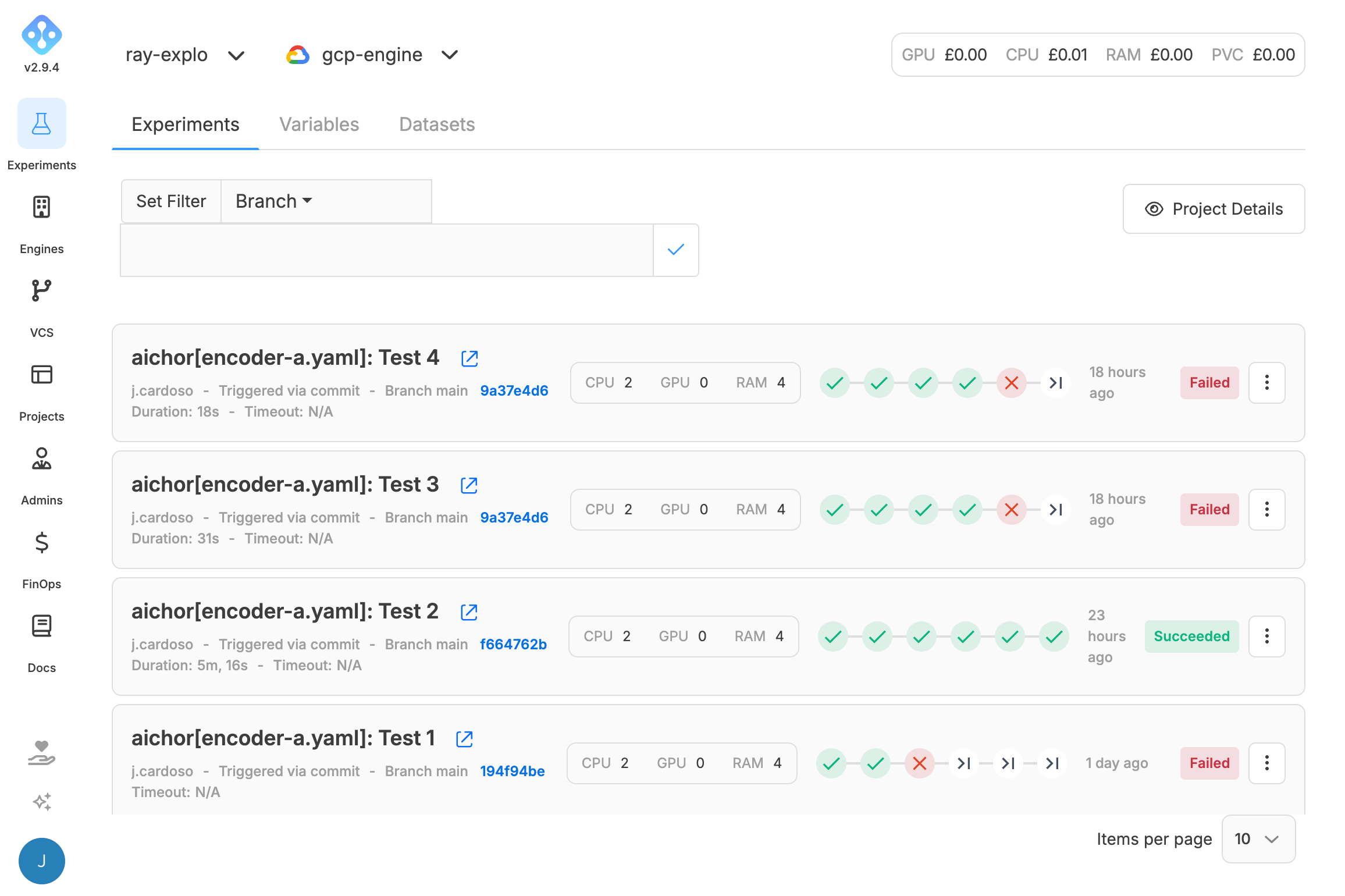
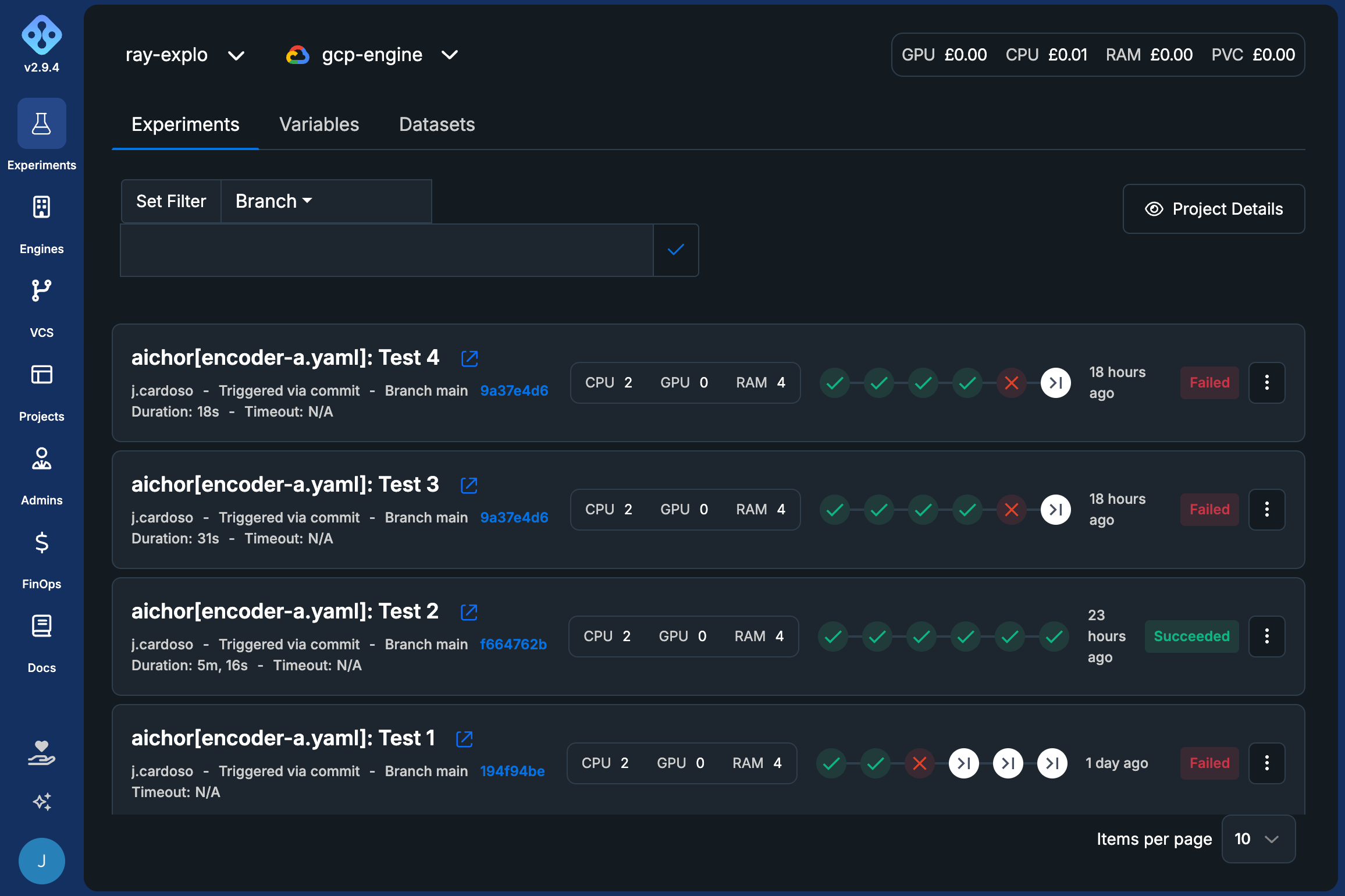
Experiments dashboard
The Experiments dashboard is accessible from the left navigation menu after selecting the experiments button.
At the top left side of the page you have the choice between two dropdowns menus, the project dropdown and the engine dropdown. You can only see and select projects that you are part of as a member or as an admin.
Here you can see all experiments for the selected project and engine along with information such as a link to the experiment code, and allocated resources (CPUs, GPUs, memory).
Triggering an experiment
An experiment must be submitted before it starts running and its progress can be viewed. There are two submission methods:
- Via a Git commit (webhook) — pushing a commit with a specific message format.
- Via the AIchor CLI — submit directly from a terminal, using one of two commands:
aichor experiments submit local— packages the local repository contents into an archive and submits them, without requiring a commit or push.aichor experiments submit commit-sha— submits an experiment from an existing branch and commit SHA already pushed to the repository.
See Triggering an Experiment for repository requirements, how to set up a project from scratch, and full details on each submission method.
Experiment lifecycle
Each experiment progresses through a sequence of steps before finishing.
Steps
| Step | Description |
|---|---|
| Waiting | The experiment is queued. |
| Cloning | The experiment code is being retrieved. |
| Building | The Docker image is being built from the Dockerfile specified in the manifest. |
| Submitting | The workload is being submitted to the engine. |
| Running | The workload is provisioned on the engine and executes. |
| Completed | The workload has finished. |
Each step carries its own status, indicating where it is in its own execution:
| Step status | Description |
|---|---|
| Initialize | The step has been created and is waiting to start. |
| Running | The step is currently executing. |
| Succeeded | The step finished successfully. |
| Failed | The step encountered an error. |
| Cancelled | The step was cancelled before finishing. |
The current step can also be checked from the CLI with aichor experiments step.
Statuses
The experiment as a whole carries an overall status:
| Status | Description |
|---|---|
| Created | The experiment has been created and is waiting to be processed. |
| Processing | The experiment is active (in any step before reaching a terminal state). |
| Succeeded | The workload finished with a zero exit code. |
| Failed | The workload exited with a non-zero code, or encountered an error during any step. |
| Cancelled | The experiment was cancelled before finishing. |
The overall status can also be checked from the CLI with aichor experiments status.
Cancel & Resubmit
Cancelling an experiment
An active experiment can be cancelled from the experiment detail view in the dashboard. The cancel option is available for experiments in Processing status.
Alternatively, the AIchor CLI can be used (see aichor experiments cancel).
Resubmitting an experiment
Resubmitting re-executes the code associated to an experiment. This is useful for retrying a failed or cancelled experiment.
This can be done in the UI or through the AIchor CLI (see aichor experiments resubmit).
Storage
Each experiment is automatically assigned an input and an output bucket. The paths are injected as environment variables into all running pods:
| Variable | Description |
|---|---|
AICHOR_INPUT_PATH | Mount path of the input bucket |
AICHOR_OUTPUT_PATH | Mount path of the output bucket |
In the experiments page users can also access their AIchor provisioned buckets and run operations on them (e.g. upload/download/delete files) under the Datasets tab.
For Kubernetes engines, administrators of the project can also create PVCs associated to the project that can be used across experiments. This is useful when avoiding repeated downloads/uploads from cloud providers
For more details on both storage options, see Project Buckets and Persistent Volume Claims.
Terminal access
AIchor lets users access running pods in order to debug experiments or for any other purpose they see fit, directly from the UI.
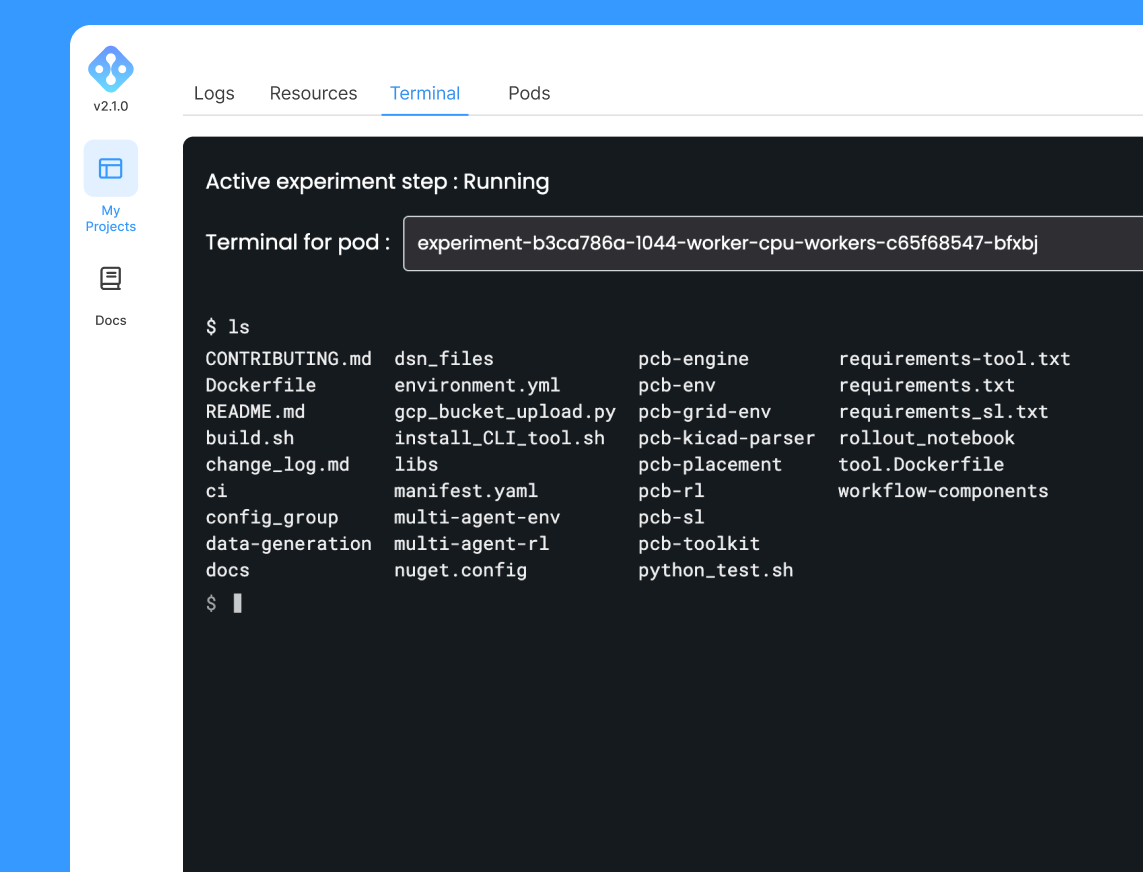
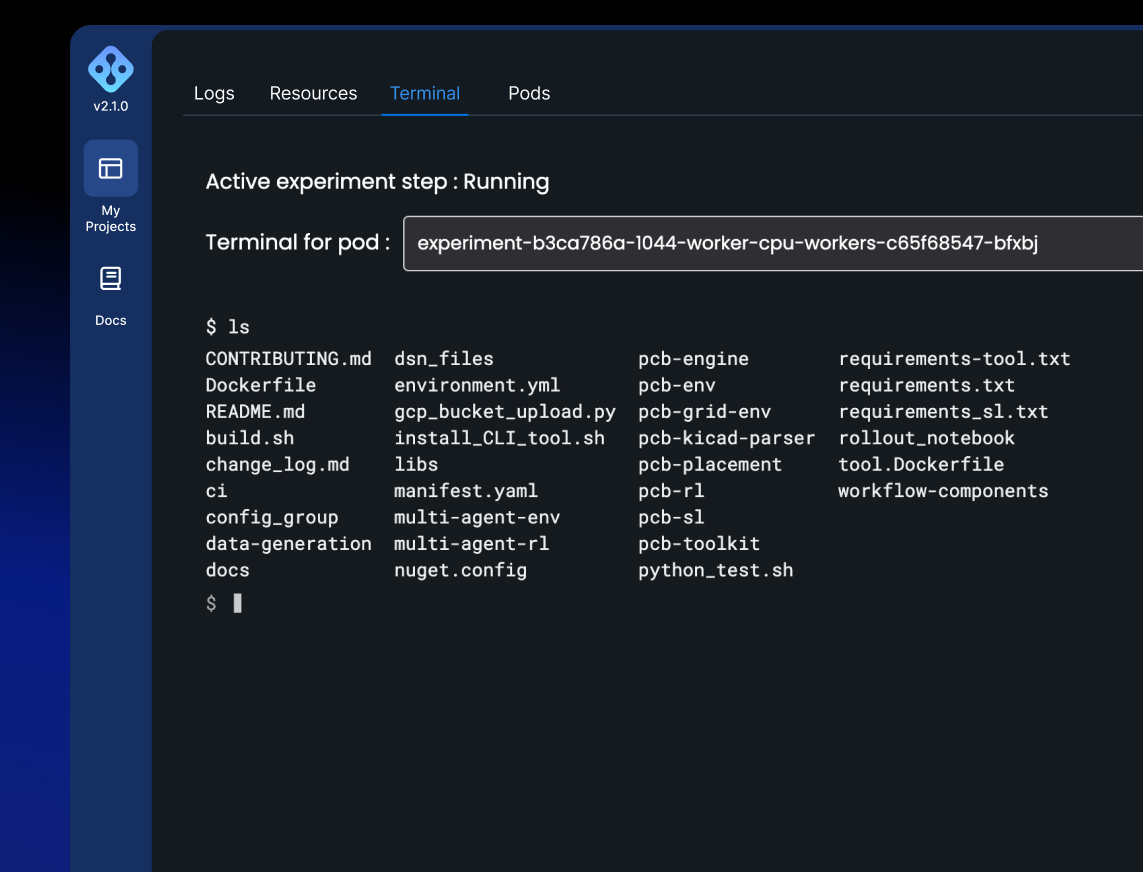
For a more fully featured workflow, running pods can also be accessed from a local IDE (VS Code or Cursor). See the Debug Tools page for details.
Developer tools
Beyond submitting and monitoring, AIchor provides a set of tools to customise and debug experiments. See the Developer Tools section for the full list, which includes:
- Docker build secrets — pass sensitive values (such as private registry tokens) to a single build step without persisting them in the image or build cache.
- Debug tools — access running pods through an in-UI terminal or from a local IDE (VS Code or Cursor) to inspect and debug experiments.