Tags
Tags are short coloured labels you attach to experiments to group them by whatever matters to you: a research direction, a dataset, a paper submission, a sweep. Each project keeps its own tag catalog, and every project member can use it.
Once an experiment is tagged, its tags show as coloured chips on the experiments list, and you can narrow the list down to the tags you care about.
Managing the tag catalog
Tags live at project level. Open a project and go to the Tags tab to see the catalog.
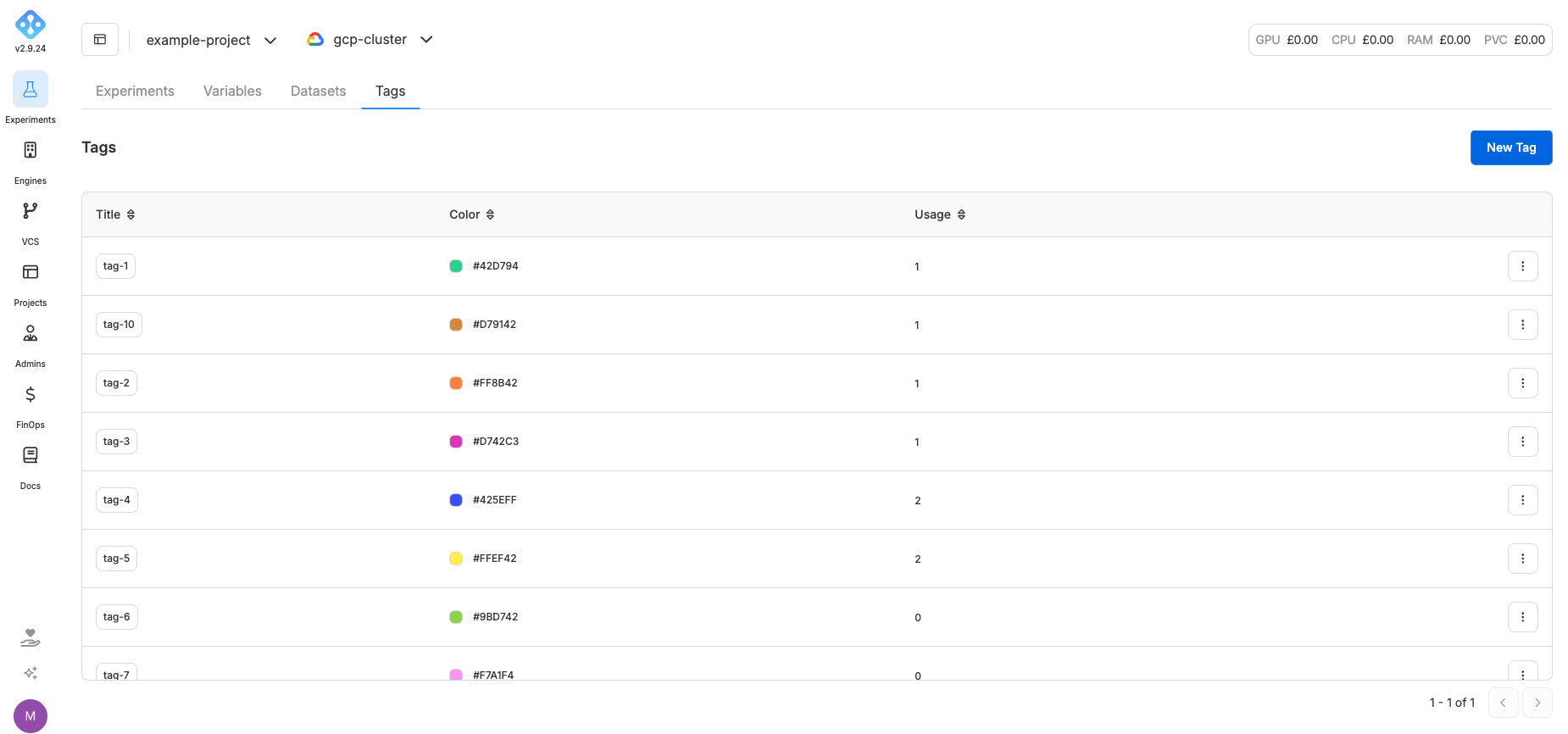
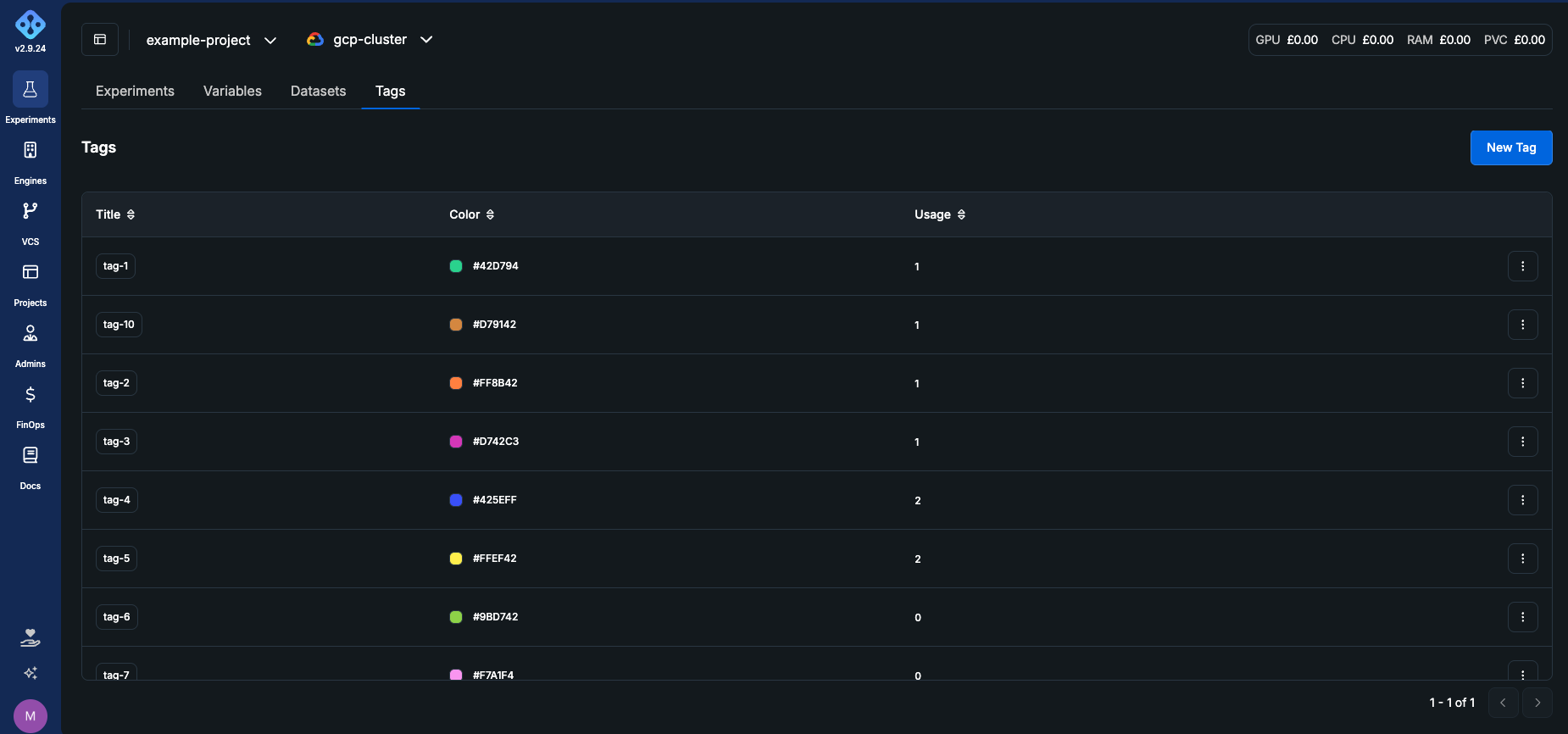
The table shows each tag's title, its colour, and Usage, the number of experiments the tag is currently attached to.
Use New Tag to add one. A tag needs a title and a six-digit hex colour such as #3B82F6; the form starts from a random colour that is not already used in the project, and the refresh button next to the field picks another one. Create saves it to the catalog.
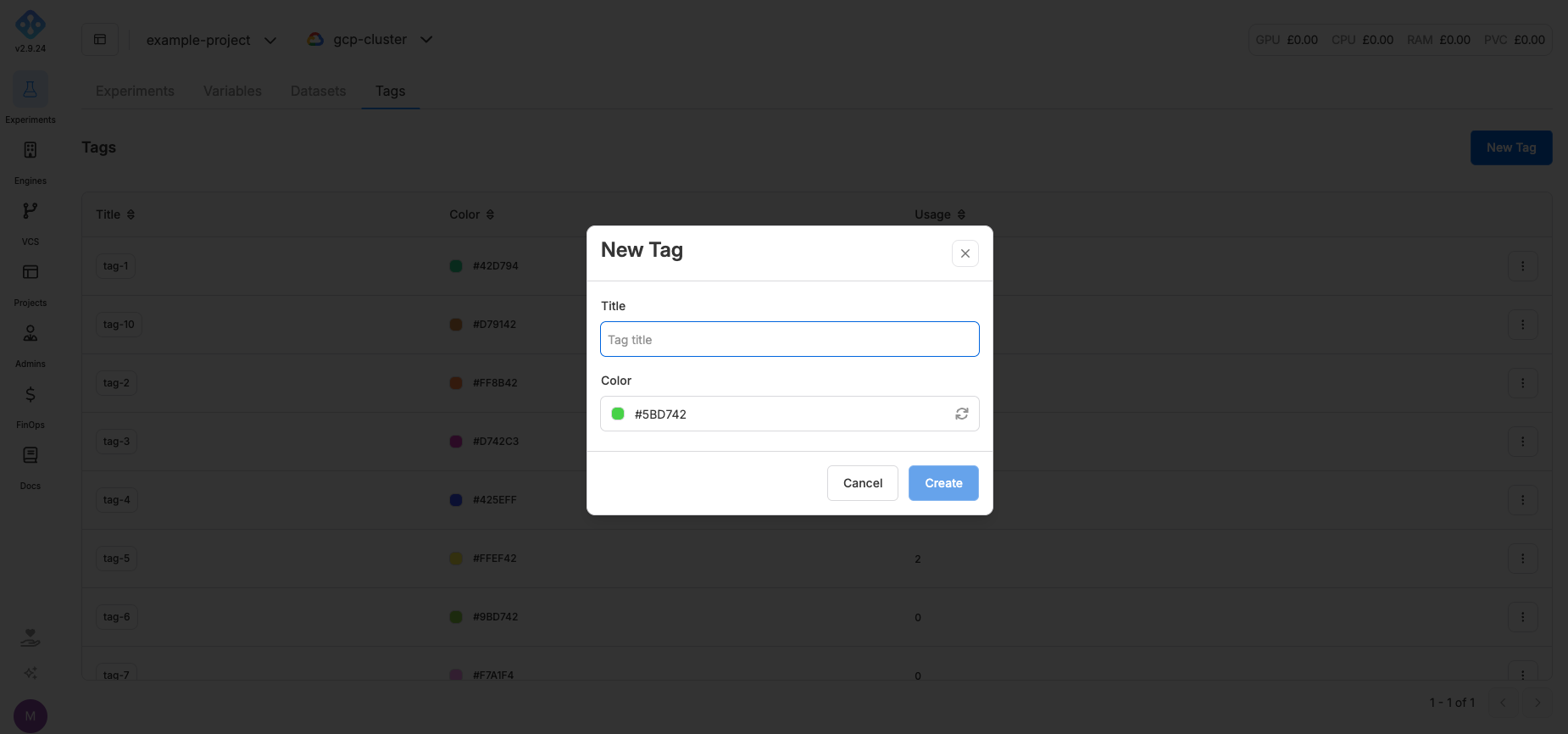
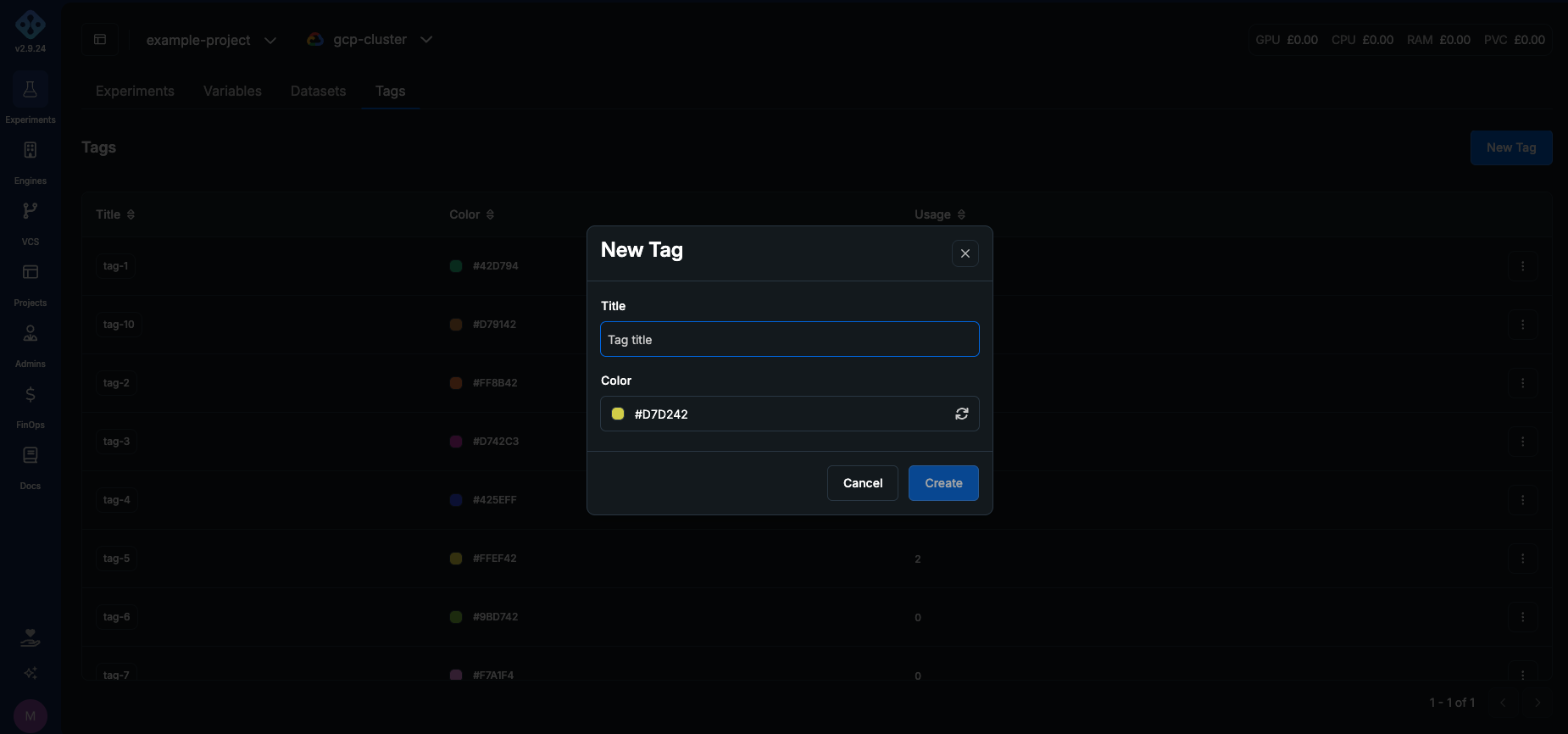
Titles are unique per project, ignoring case and surrounding spaces, so BeStExPeRiMeNt and bestexperiment are the same tag. The form tells you when the name is taken.
The row menu on the right of each tag offers Edit Tag and Delete Tag. Editing renames or recolours the tag everywhere it is attached, because every experiment points at the same catalog entry.
Deleting a tag also removes it from every experiment that carries it. The experiments themselves are untouched, but the attachment is gone and cannot be restored. Recreating the tag does not bring it back.
Tagging an experiment
Open an experiment and click the tag button in the header. The picker has two parts:
- Selected Tags: what the experiment carries today. Click a row to detach the tag.
- Other Tags: the rest of the project catalog. Search by name and click a row to attach the tag.
If you type a name that no tag in the project matches, the picker offers Create "<name>". That creates the tag in the project catalog with a colour picked for you and attaches it to the experiment in one go, so you do not have to leave the experiment to add a tag. Typing the name of a tag that already exists reuses it whatever the casing, rather than creating a near-duplicate.
An experiment carries at most 10 tags. At the cap the remaining options are greyed out and tell you why; detach one to make room.
Tagging from the manifest
It is possible to tag experiments during submission by setting them in the AIchor manifest file. Declare a top-level tags key and every experiment that manifest produces will be tagged:
kind: AIchorManifest
apiVersion: "0.2.3"

tags:
  - "baseline"
  - "gpu-sweep"

builder:
  image: myimage
  dockerfile: ./Dockerfile

spec:
  operator: jobset
  # ...
Names behave the same way they do in the picker. A name that matches a tag already in the project reuses it whatever the casing or spacing, so GPU Sweep and gpu sweep are the same tag rather than two near-duplicates.
A name for a tag that does not yet exist will be created in the project catalog with a random colour
The same 10 tag cap per experiment applies and each name can be at most 50 characters.
Tag problems never fail a run. If the manifest lists more than ten tags, or an entry is not a usable tag name, AIchor attaches everything it can, creates and runs the experiment normally, and emails whoever triggered it listing what was skipped.
Quoting is a safe way to avoid collisions with reserved YAML words such as on, off, yes, no, true, false, null and bare numbers become booleans. Write "on" or "123" instead.
Manifest tags are applied once on experiment creation. Editing tags afterwards in the UI replaces the set for that experiment but future experiments using the same manifest will keep the old tag set, which is something worth keeping in mind.
See the Manifest Reference for the field itself.
Where tags appear
Tags show as coloured chips on the experiments list, under the experiment name.
A row shows up to three chips. Beyond that the extra tags collapse into a +N tags chip, and hovering it shows their names. On the experiment page itself, the tag button holds the full set, so a long tag list never crowds the header.
Chip colours are adjusted for the active theme, so the same tag stays readable in both light and dark mode whichever colour you gave it.
Filtering the list by tag
On the experiments list, open the Filter dropdown and pick Tags. Check the tags you want and apply the filter with the tick button.
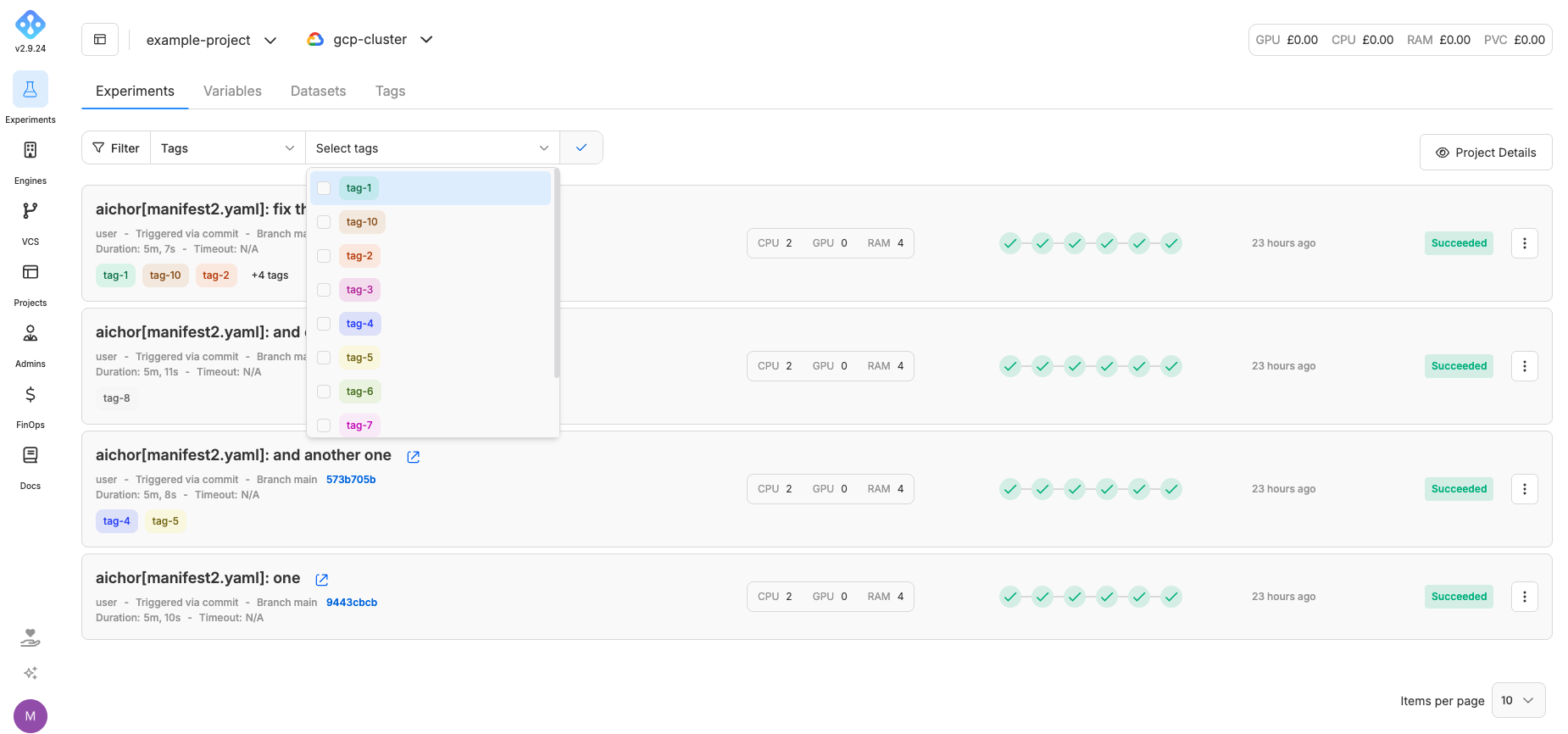
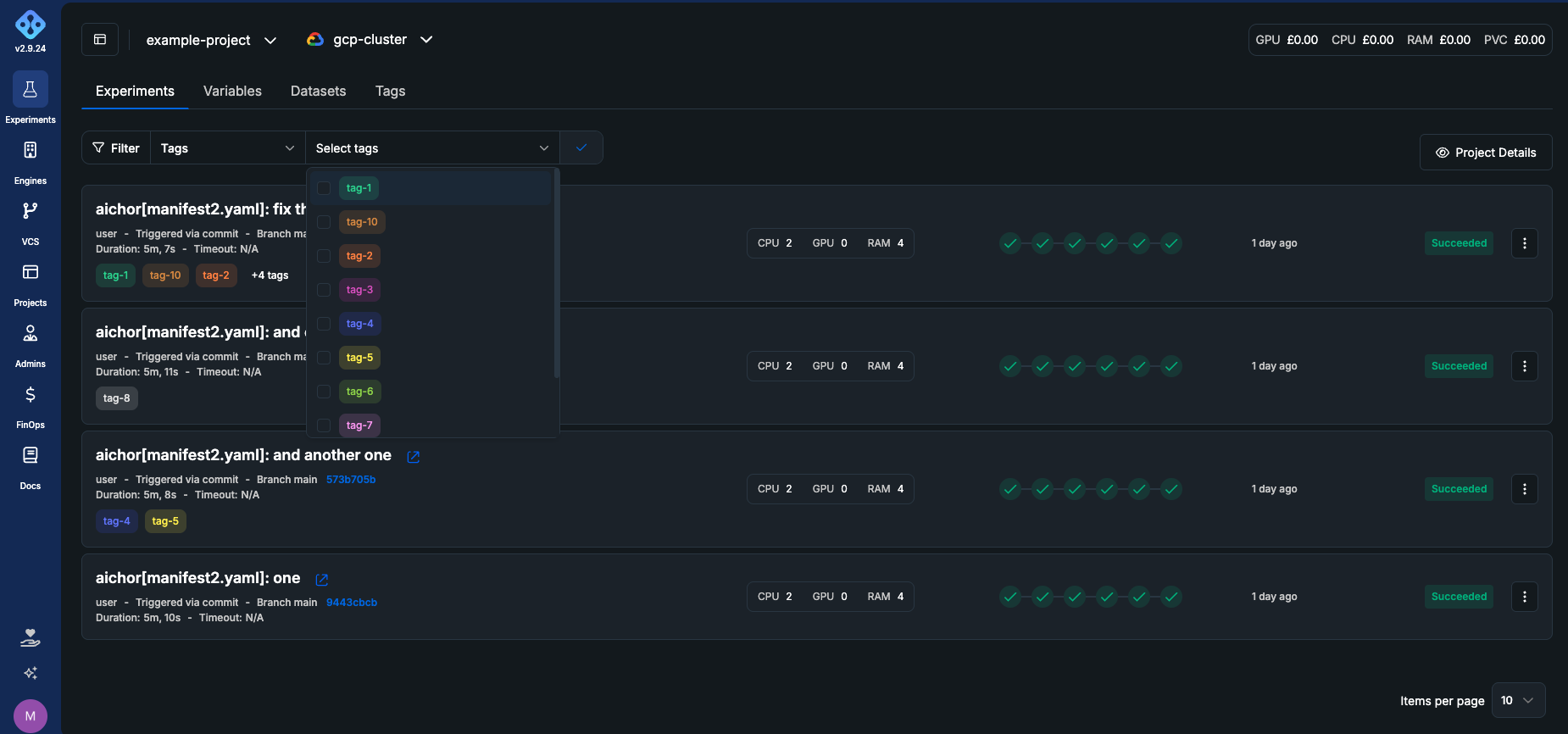
Selecting several tags narrows the list to experiments that carry all of them, not any of them, so adding a tag to the filter always makes the result smaller.
The applied filter appears as a dismissible badge next to the other filters, listing the tag names. Remove the badge to clear it, or reopen the picker, uncheck everything and apply to do the same.
Tag filters behave like every other experiment filter:
- They are written to the page URL, so a filtered list can be bookmarked or shared.
- They are remembered per project and engine, so coming back to the list keeps what you were looking at.
If a tag is deleted from the catalog while it is part of your filter, it is dropped from the filter automatically the next time the list loads.
Permissions
Tags are open to every member of a project: any project member can create, edit and delete the project's tags, and attach or detach them on experiments. Users without access to a project see neither its tag catalog nor the tag filter. See Roles & Permissions for the full matrix.