Debug Tools
Terminal
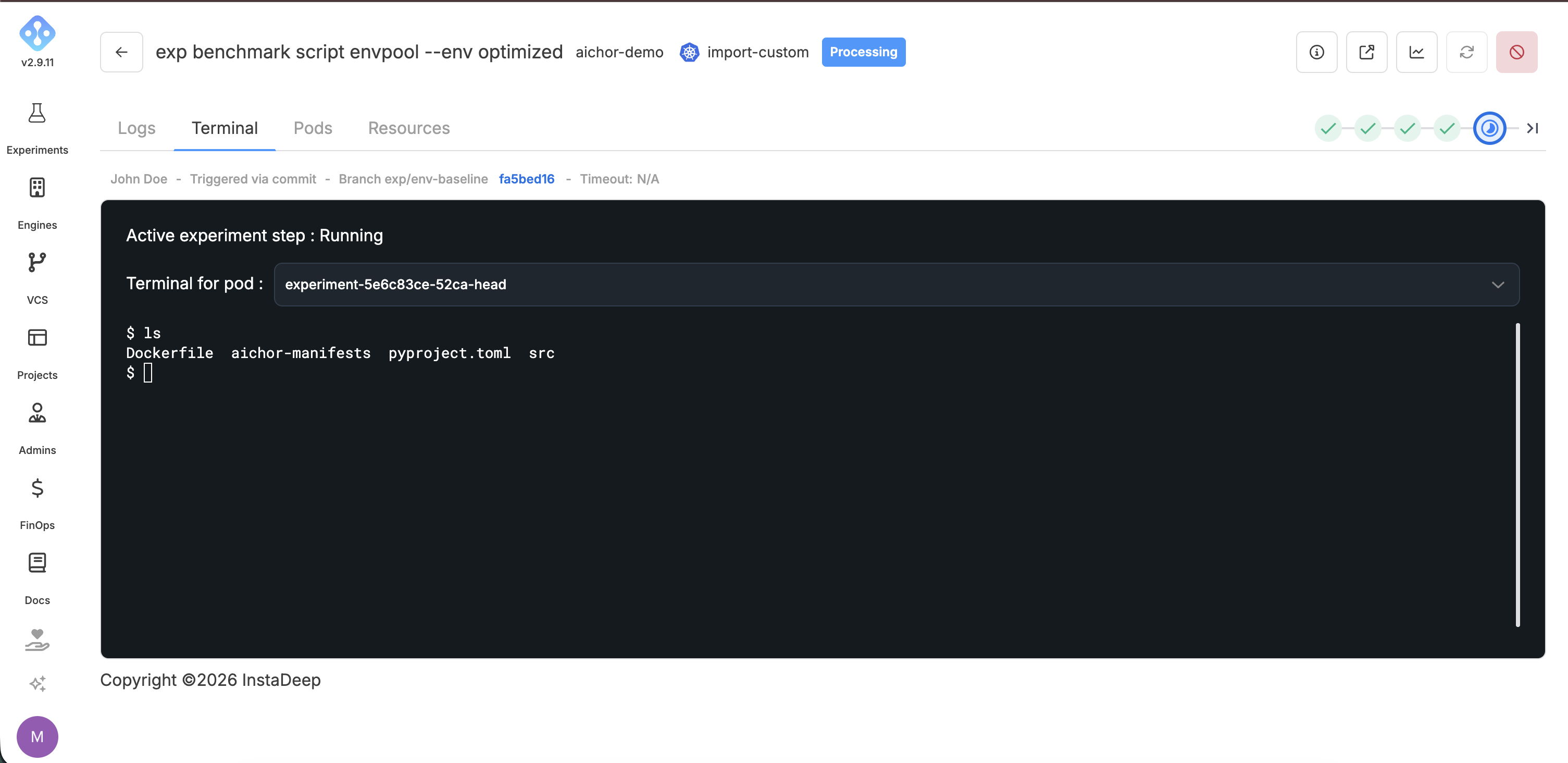
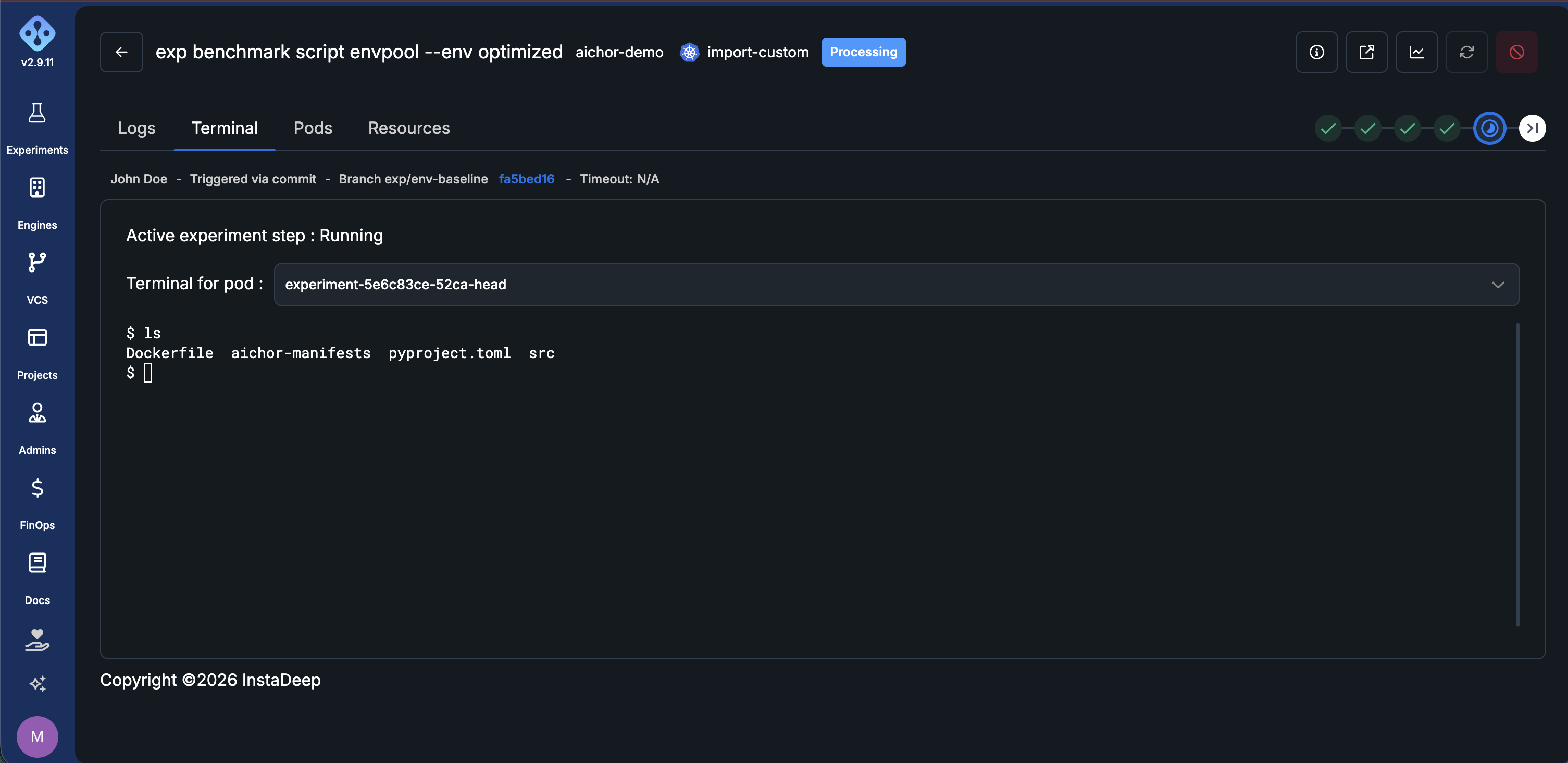
AIchor allows users to access a running pod through a terminal, in order to debug an experiment or for any other purpose.
The terminal requires a shell to be present in the experiment's image (at /bin/sh). Minimal or scratch-based images that ship without one cannot open a terminal.
Interactive debugging with Visual Studio Code and Cursor
The terminal feature provides access to running pods for debugging from the AIchor UI, supporting interactive programs such as vim and htop, but it is still not a full IDE. Note that history and tab-completion depend on the shell in your image: the default /bin/sh on Debian-based images has no line editing, so run bash if your image provides it.
AI engineers often need to debug their code in a more user-friendly environment, with the IDE tools that enable efficient work.
For this, AIchor supports connecting to a running pod from a local machine through VS Code or Cursor.
User requirements
This feature only requires either:
- a GitHub account, or
- a Microsoft account
The account is used for authentication only.
Code requirements
The Visual Studio Code binary must be present in the experiment's image — for example, by adding this Dockerfile stage:
FROM alpine/curl AS vscode-installer

RUN mkdir /aichor
RUN curl -Lk 'https://code.visualstudio.com/sha/download?build=stable&os=cli-alpine-x64' --output /aichor/vscode_cli.tar.gz
RUN tar -xf /aichor/vscode_cli.tar.gz -C /aichor


# Project's Dockerfile content, for example
FROM pytorch/pytorch:2.4.1-cuda12.4-cudnn9-runtime
# ...
# Project's Dockerfile content

# Copy the vscode binary on the final Dockerfile stage at '/aichor'
# binary won't be findable in $PATH, it'll just be located at '/aichor/code'
COPY --from=vscode-installer /aichor /aichor
For Cursor, the Dockerfile should be adjusted as follows:
FROM alpine/curl AS cursor-installer

RUN mkdir /aichor
RUN curl -L 'https://api2.cursor.sh/updates/download-latest?os=cli-alpine-x64' --output /aichor/cursor.tar.gz
RUN tar -xf /aichor/cursor.tar.gz -C /aichor

# Project's Dockerfile content, for example
FROM pytorch/pytorch:2.4.1-cuda12.4-cudnn9-runtime
# ...
# Project's Dockerfile content

# Copy the vscode binary on the final Dockerfile stage at '/aichor'
# binary won't be findable in $PATH, it'll just be located at '/aichor/code'

COPY --from=cursor-installer /aichor /aichor
VS Code debug mode is enabled in the manifest:
...
spec:
  ...
  debug:
    vscode:
      enabled: true # required
      path: "/aichor/code" # Optional, defaults to "code". Refer the absolute path of the binary if not findable in $PATH
      provider: "github" # Optional, vscode tunnel provider. Options are "github" or "microsoft", defaults to "github"
...
For Cursor, the manifest changes are:
...
spec:
  ...
  debug:
    vscode:
      enabled: true # required
      path: "/aichor/cursor" # Optional, defaults to "code". Refer the absolute path of the binary if not findable in $PATH
      provider: "github"
...
For example, using GitHub: once the experiment is running, the logs should contain a line similar to:
To grant access to the server, please log into https://github.com/login/device and use code XXXX-XXXX
Follow the link, enter the code, and authorize GitHub. The VS Code tunnel then opens with GitHub, and more logs appear:
*
* Visual Studio Code Server
*
* By using the software, you agree to
* the Visual Studio Code Server License Terms (https://aka.ms/vscode-server-license) and
* the Microsoft Privacy Statement (https://privacy.microsoft.com/en-US/privacystatement).
*
[2025-02-24 14:25:24] info Creating tunnel with the name: 8e68f47f-6e08-mhTrZ
Open this link in your browser https://vscode.dev/tunnel/8e68f47f-6e08-mhTrZ/opt/app
Click the vscode.dev link to open VS Code, then select GitHub to connect to the tunnel.

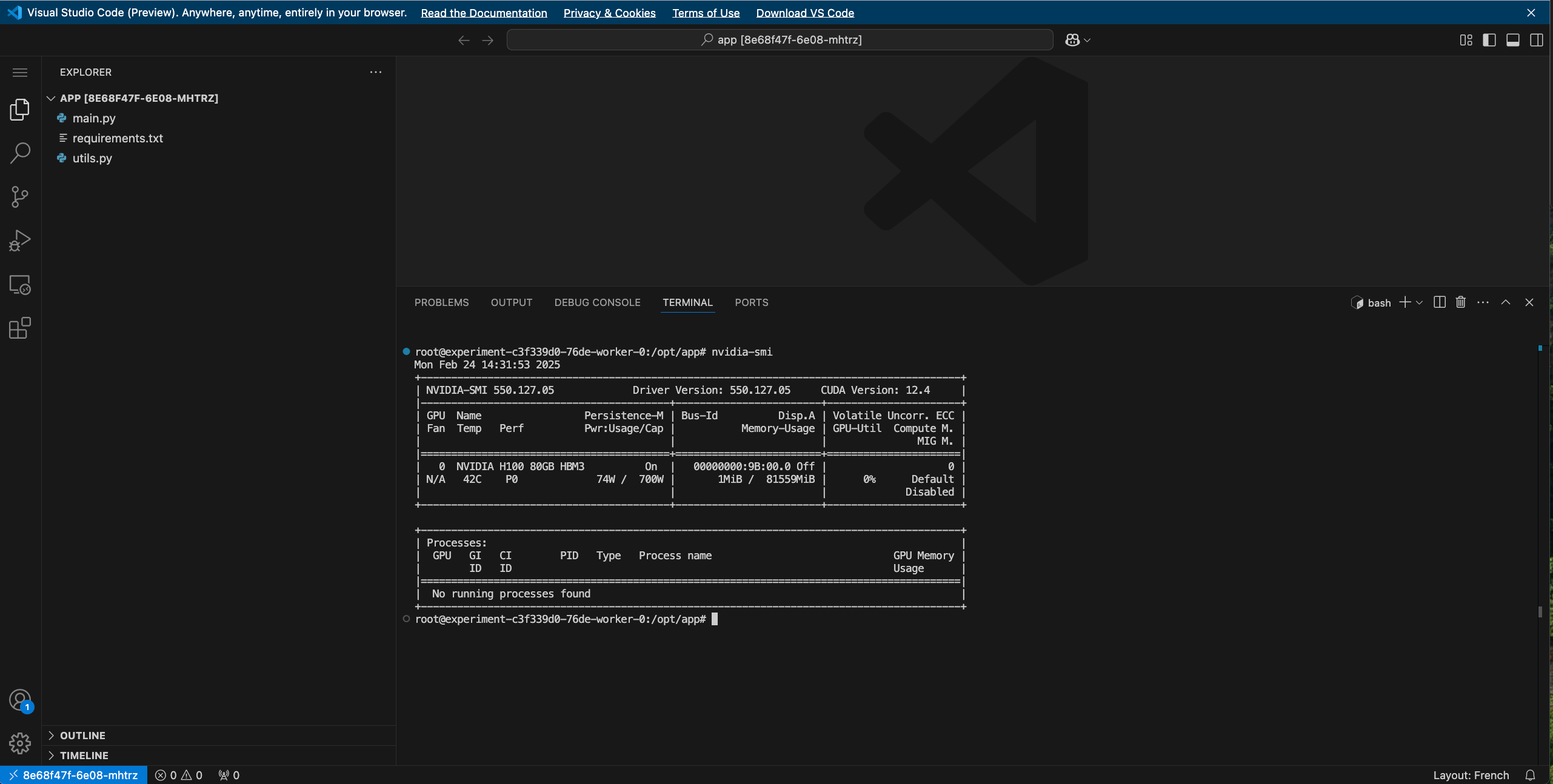
The experiment's files and terminal should now be accessible:
The tunnel can also be reached from the VS Code desktop app. Launch the app and click the button to set up a remote connection:

Select "Connect to tunnel":

Log in with GitHub and select the tunnel; it should show an "Online" flag:

VS Code opens at ~, which usually doesn't contain the experiment's files. They can be opened by selecting "Open Folder" and entering the path:

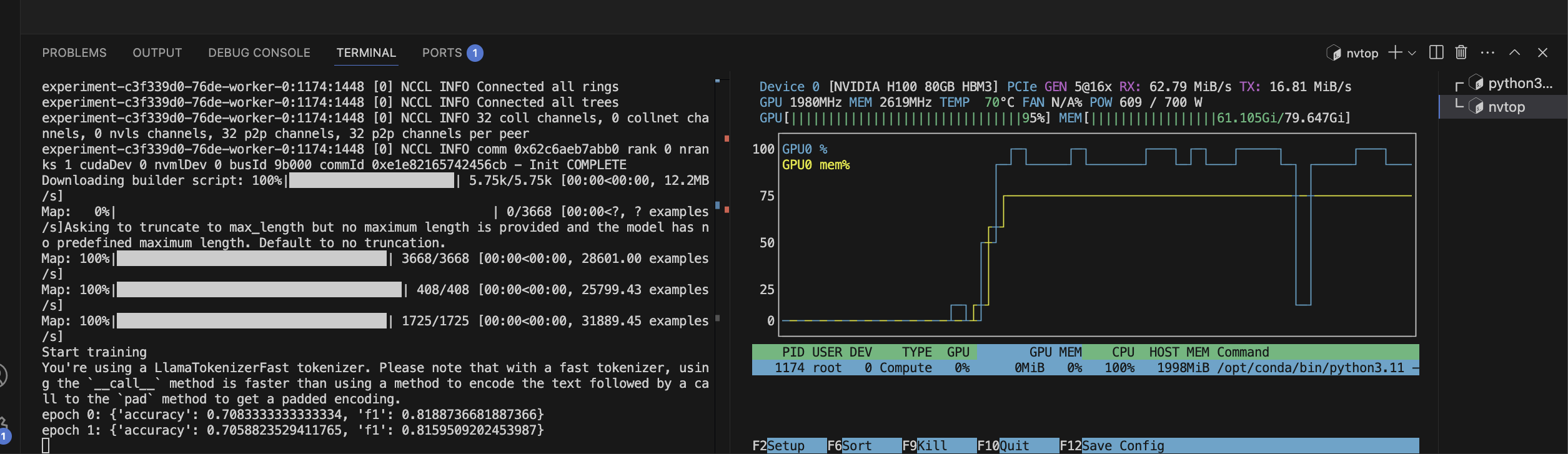
The code and the requested compute can now be used interactively:
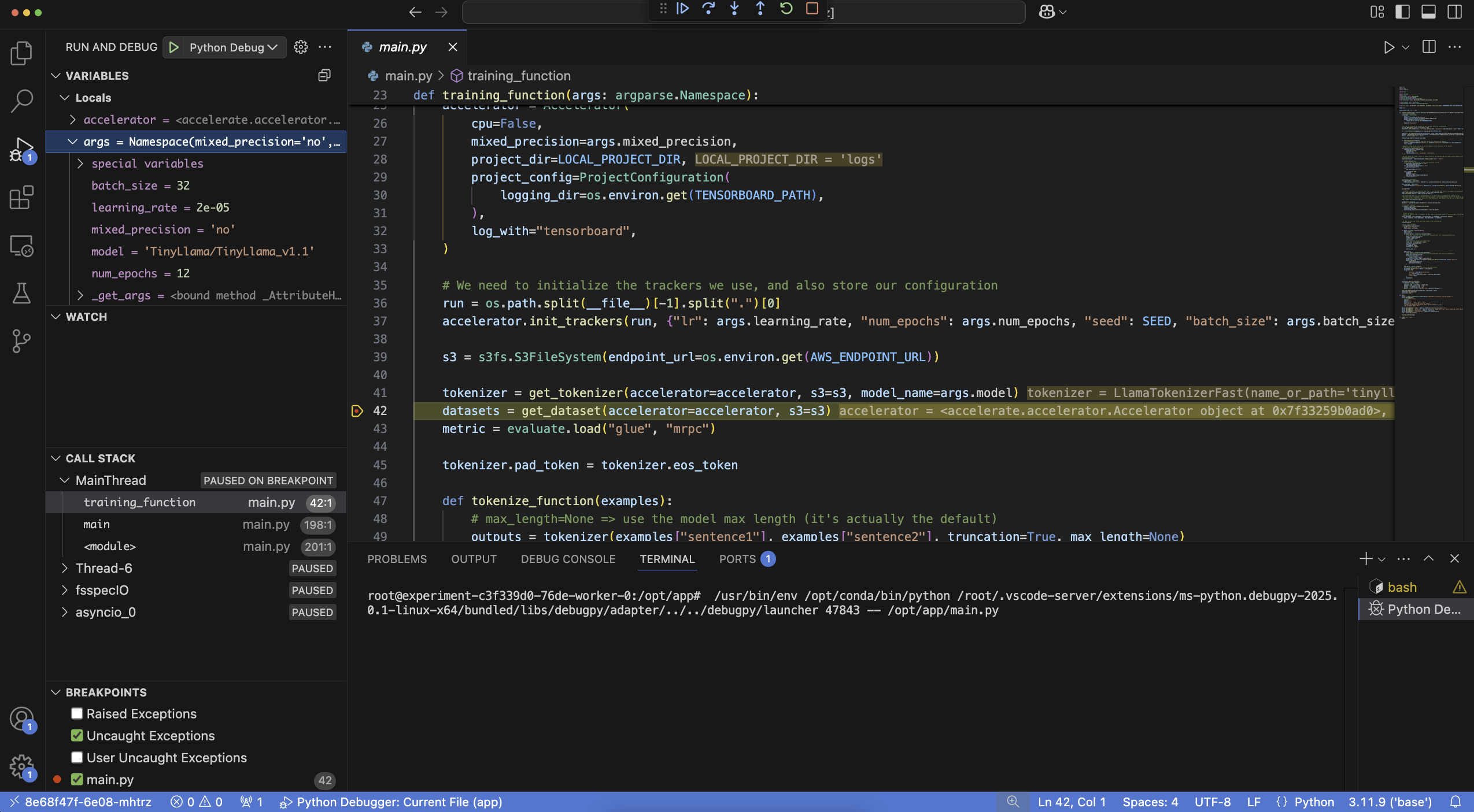
Remote extensions — such as the official Python extension — can also be installed to run the debugger against the code:
Known issues
Cursor extension
Cursor removed the "Remote - Tunnels" extension from its marketplace, which breaks the Cursor setup. Some users have reported workarounds that allow installing it anyway:
Solution #1 — install the extension manually
- Download the extension package:
curl -L "https://ms-vscode.gallery.vsassets.io/_apis/public/gallery/publisher/ms-vscode/extension/remote-server/latest/assetbyname/Microsoft.VisualStudio.Services.VSIXPackage" --output remote-server-latest.vsix
- Install it:
cursor --install-extension ./remote-server-latest.vsix
- Open Cursor, press
Ctrl+Shift+P, and typeremote-tunnel. The Remote - Tunnels commands should now appear.
Solution #2 — import from VS Code
In the Extensions panel, use the option to import extensions from VS Code.
If neither solution works, completely uninstalling and reinstalling Cursor may help (reference).
⚠️ Limitations and caveats ⚠️
- The Visual Studio Code server runs for a maximum of 12 hours. Once debugging is complete, it should be cancelled like a regular experiment.
- If the pod is evicted or terminated while a VS Code debug session is open, the logs may incorrectly report
VSCode debug session reached 12h, self-destruct now.. If this message appears unexpectedly, check the Pods tab of the experiment to confirm whether the pod was terminated. - Traffic between the VS Code server running in the experiment and the client (web or desktop app) is tunneled through GitHub or Microsoft.
- When
spec.debug.vscode.enabledistrue, AIchor overwrites the manifest'scommandwith a command that starts the VS Code server, so the manifest's owncommandis not executed.