Cloud Engine management
Prior to creating projects to run workloads on AIchor, Administrators need to specify the engine where the jobs will be executed.
Depending on the organisation requirements, administrators can select one of 4 options:
- SaaS: AIchor runs the workloads for the customer on Instadeep private or public cloud.
- In the Cloud: Workloads will run on the customer account on AWS or GCP or MS Azure.
- Hosted: Workloads will be running on Instadeep infrastructure (on Premise) upon a confidentiality agreement with the customer.
- On Premise: Workloads will be running on the customer infrastructure.
Note: The case of importing on-premise is detailed in the section "Import On Premise engine"
To start the creation/import process, the administrator selects "Advanced" and "In the Cloud".
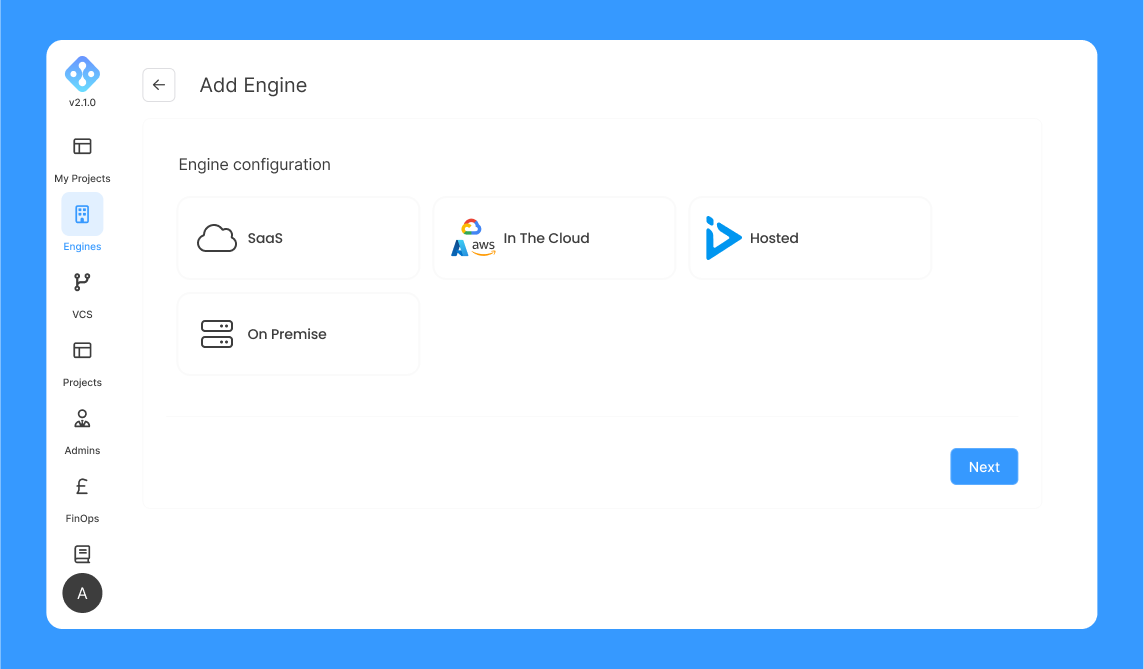
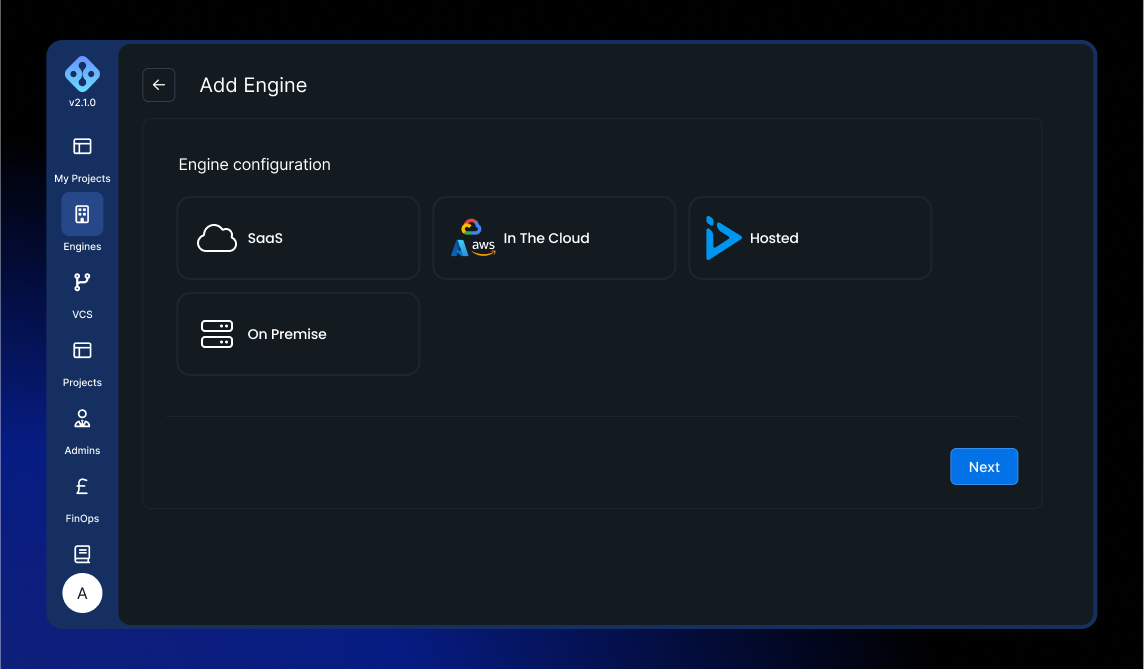
Next, depending on the target engine, the administrator selects one of target engine types and fill in the appropriate form to create or import an engine.
GCP
If the cloud provider selected is GCP, the administrator can either create a GKE engine through AIchor or import an existing one.
Note All the regions available on GCP are supported by AIchor.
If the administrator would like AIchor to create a GKE cluster, then he needs to select "Create engine":
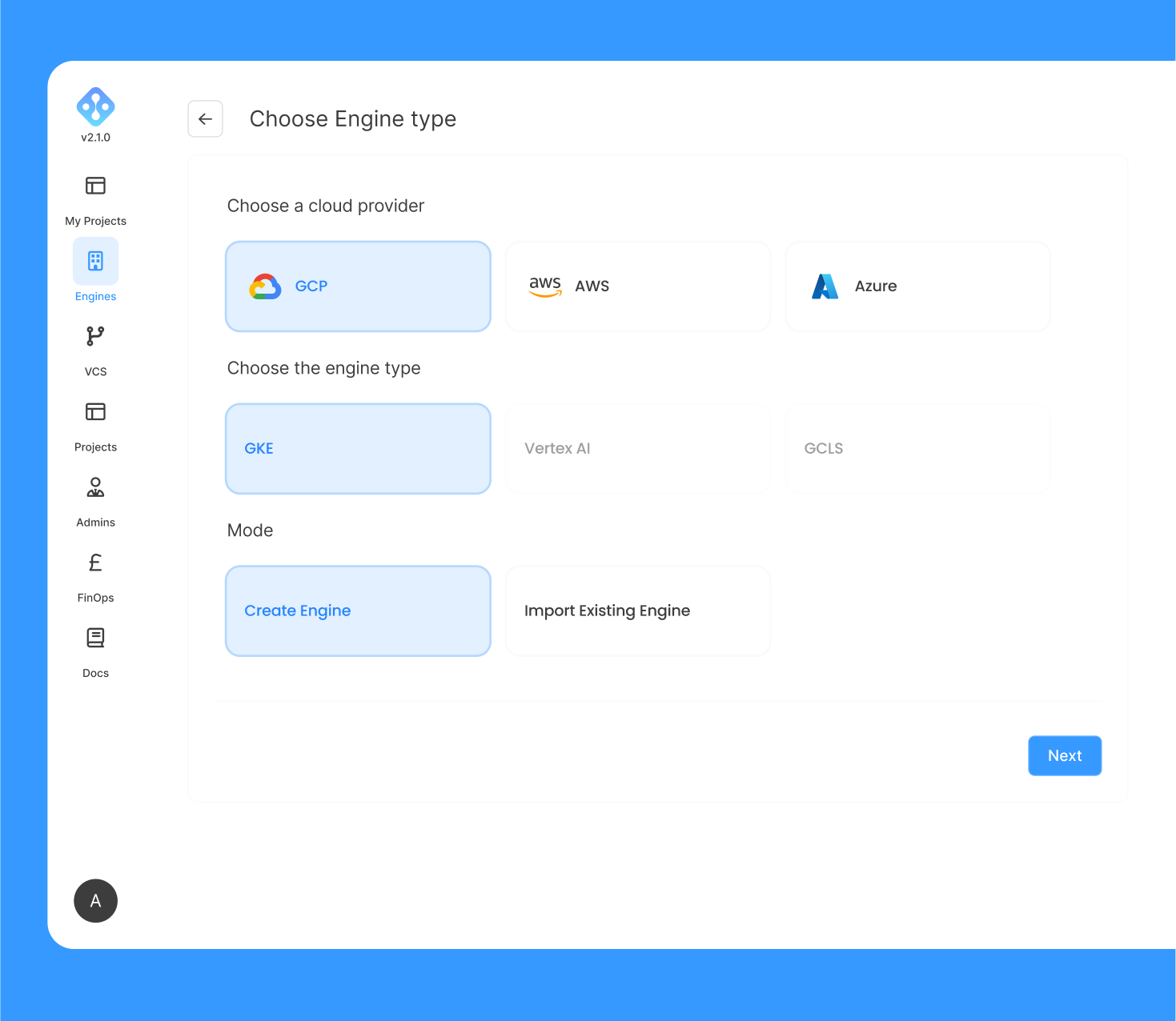
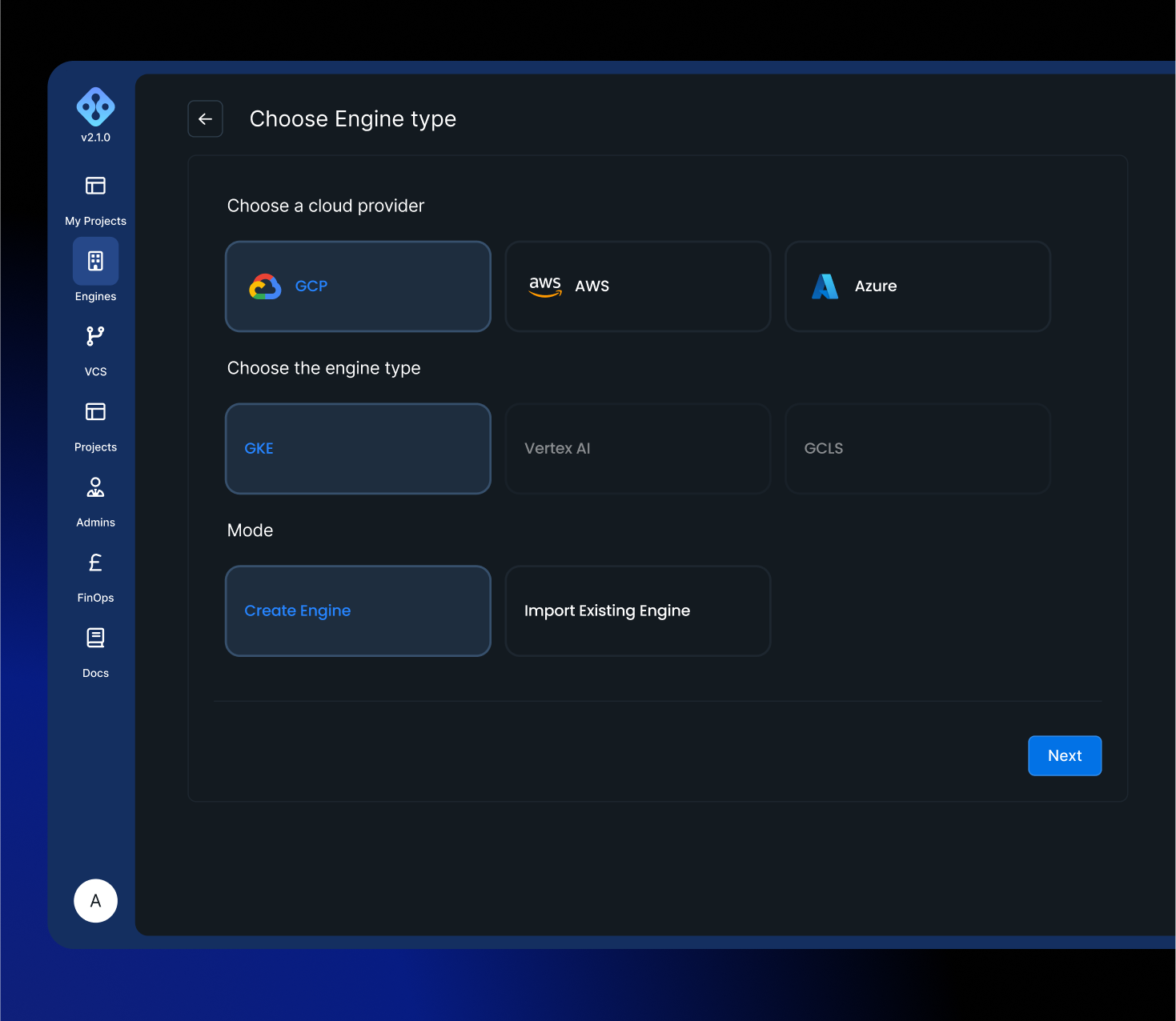
And provide the below information:
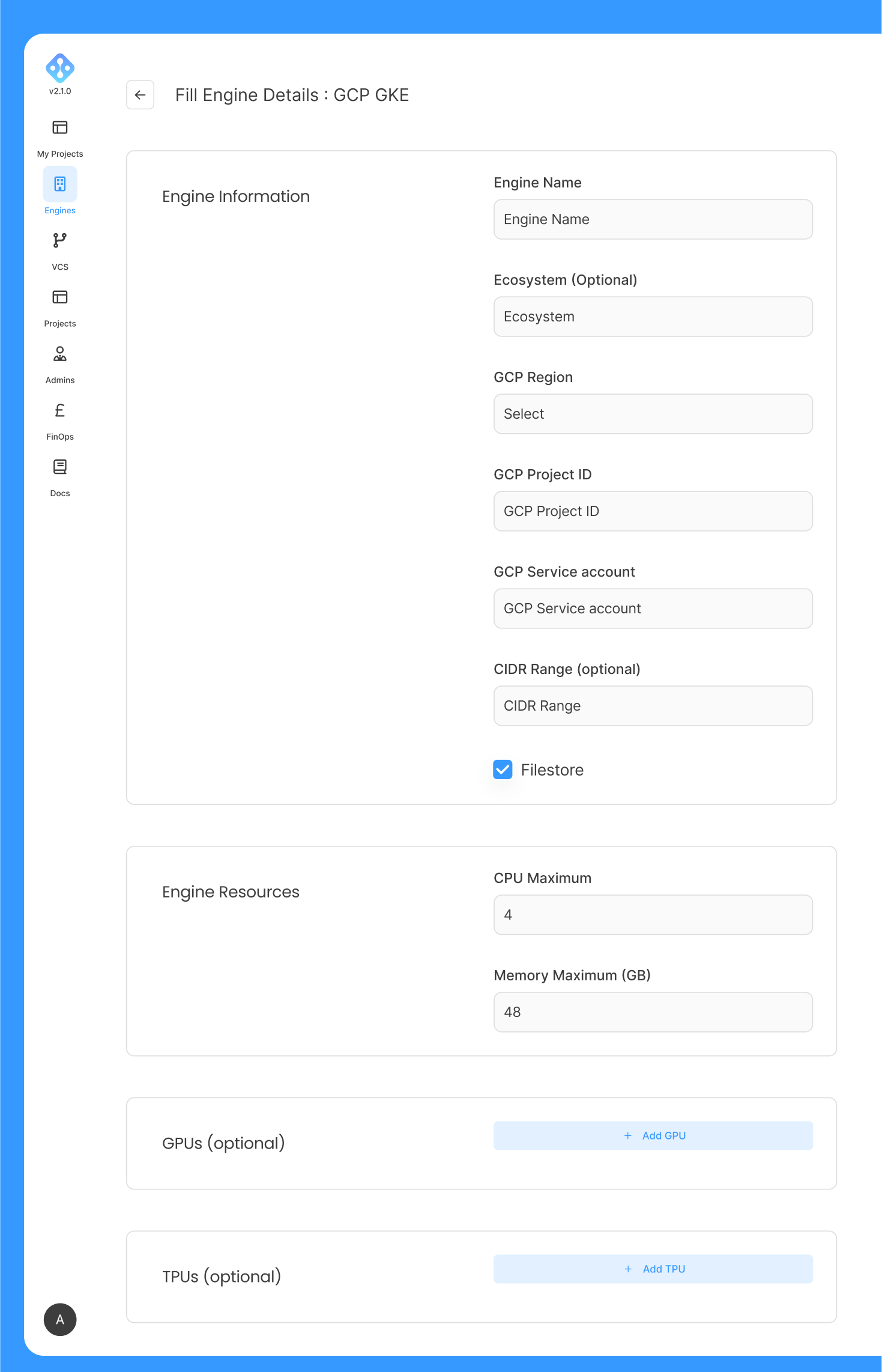
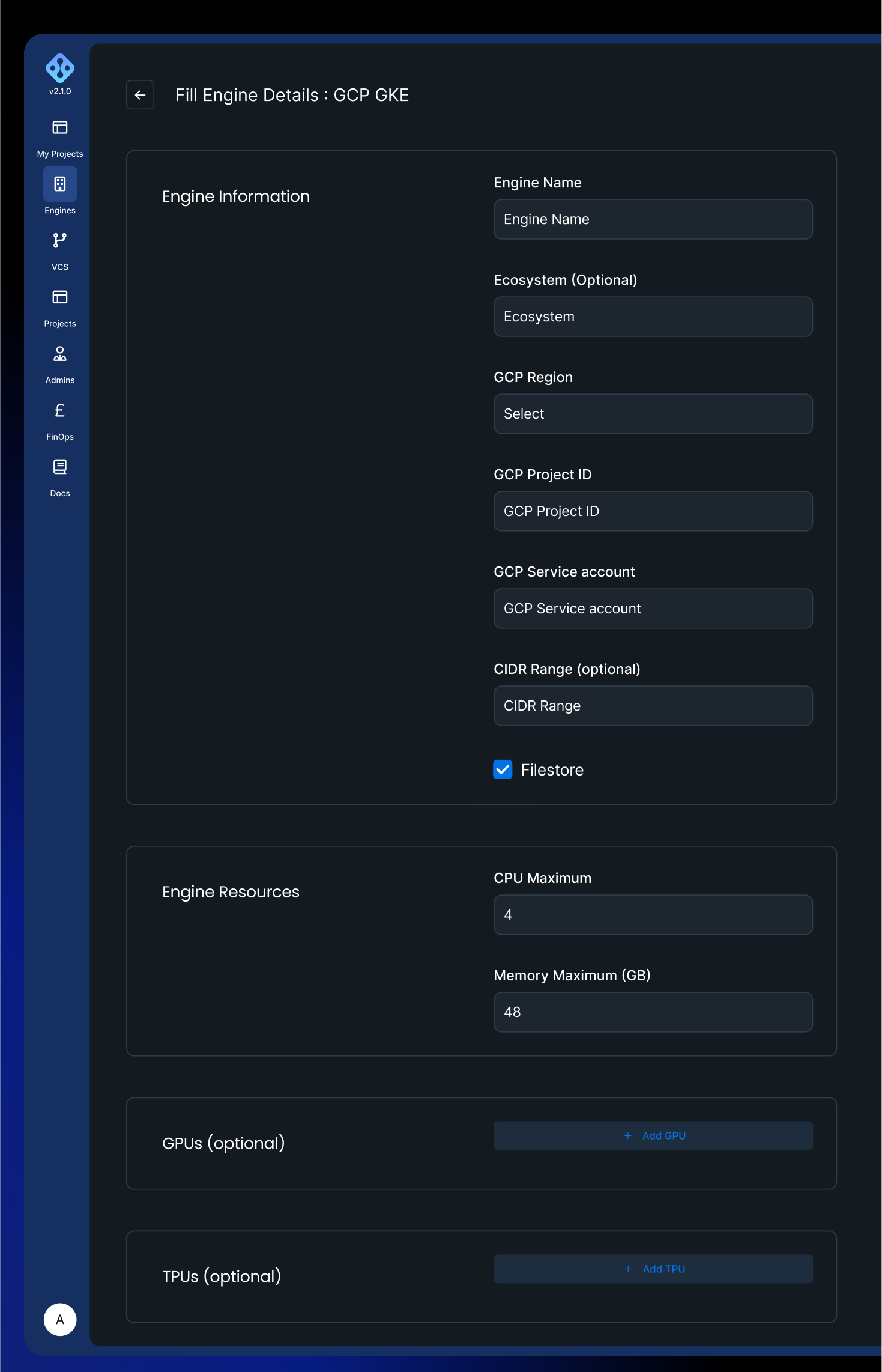
The deployment process lasts up to 15 minutes, once the process is finished, the engine should be displayed as ready on the engine management page.
If the administrator would like to import an existing GKE cluster created beforehand, then "Import Existing Engine" is selected:
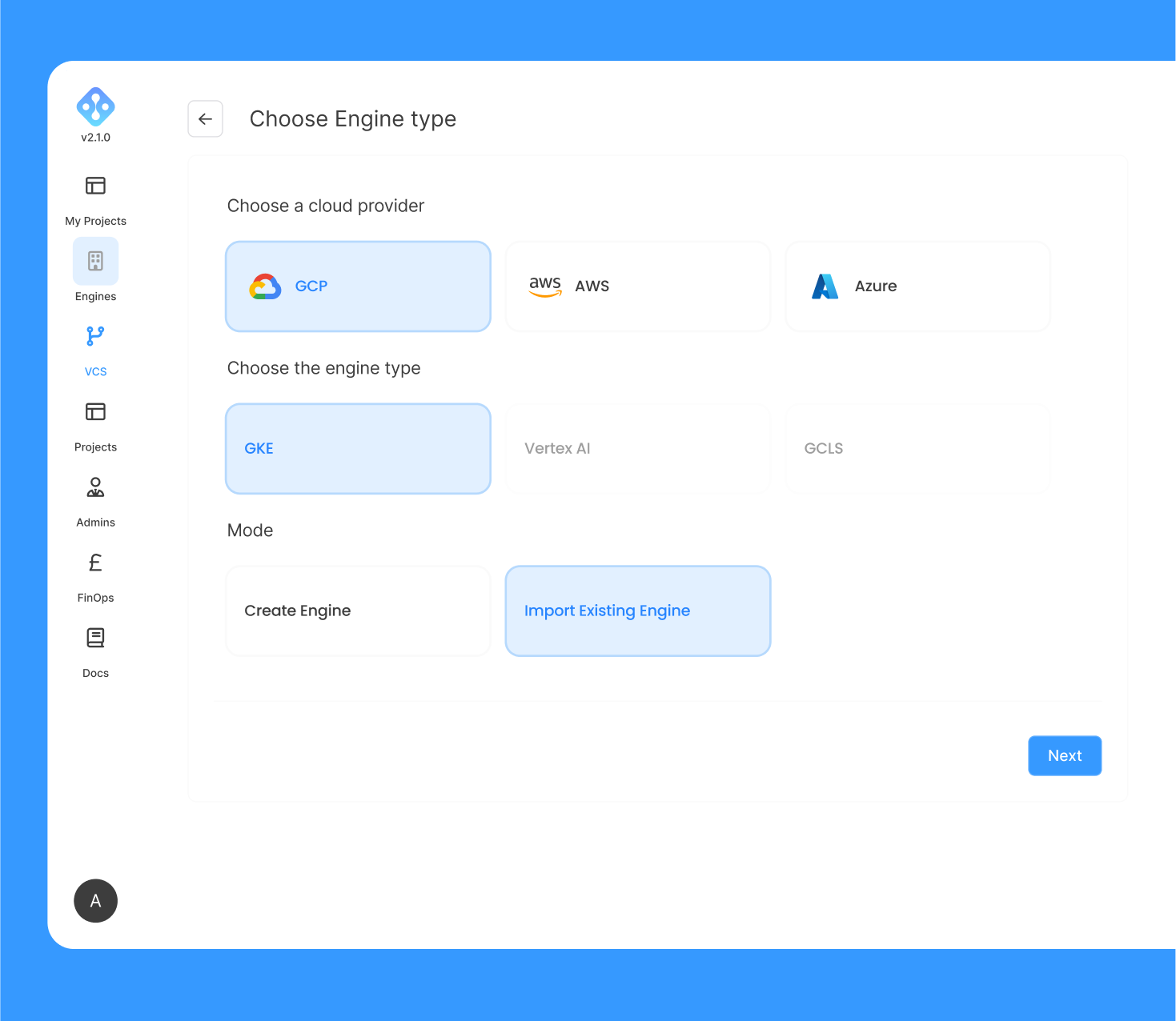
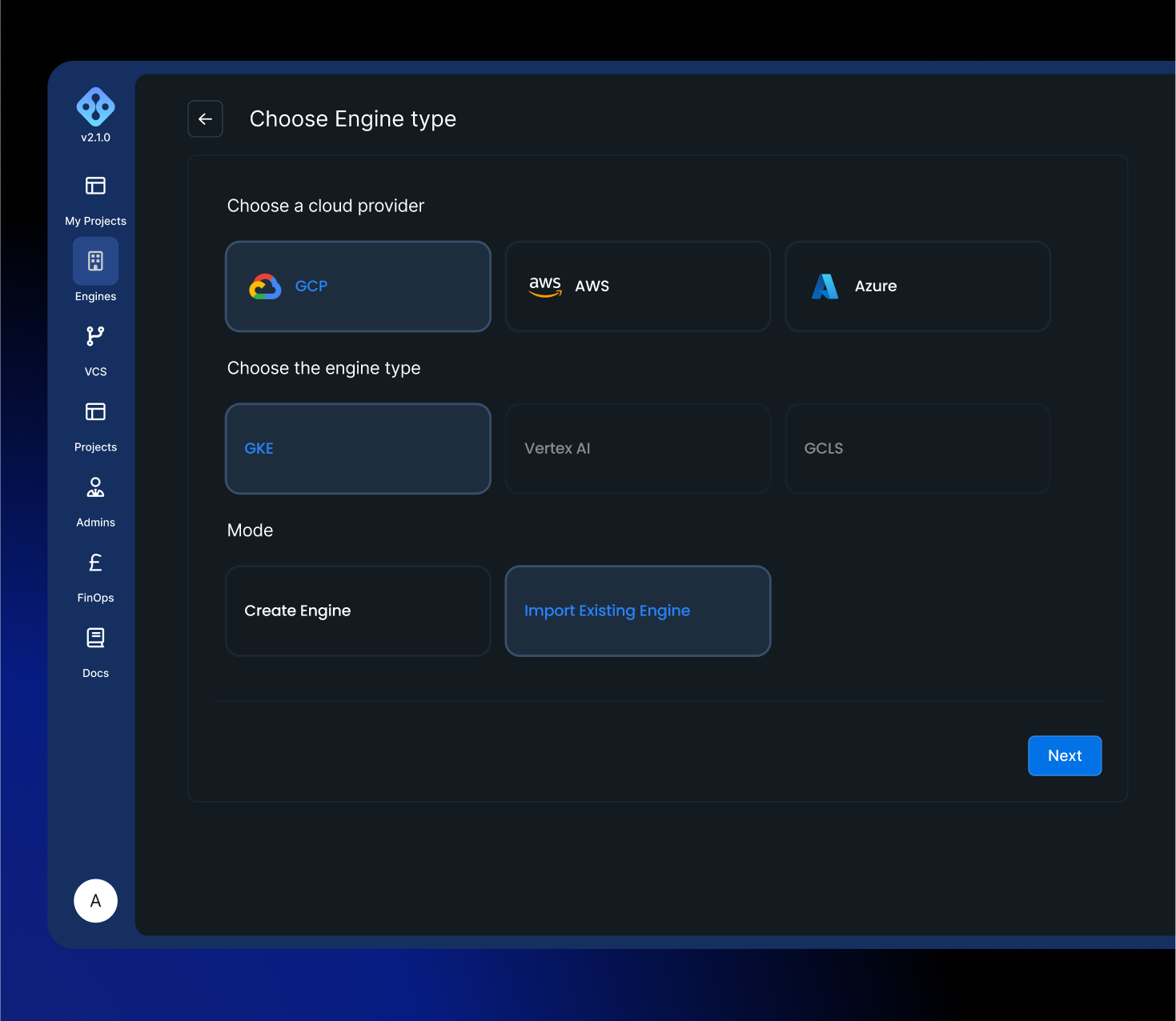
And provide the below information:
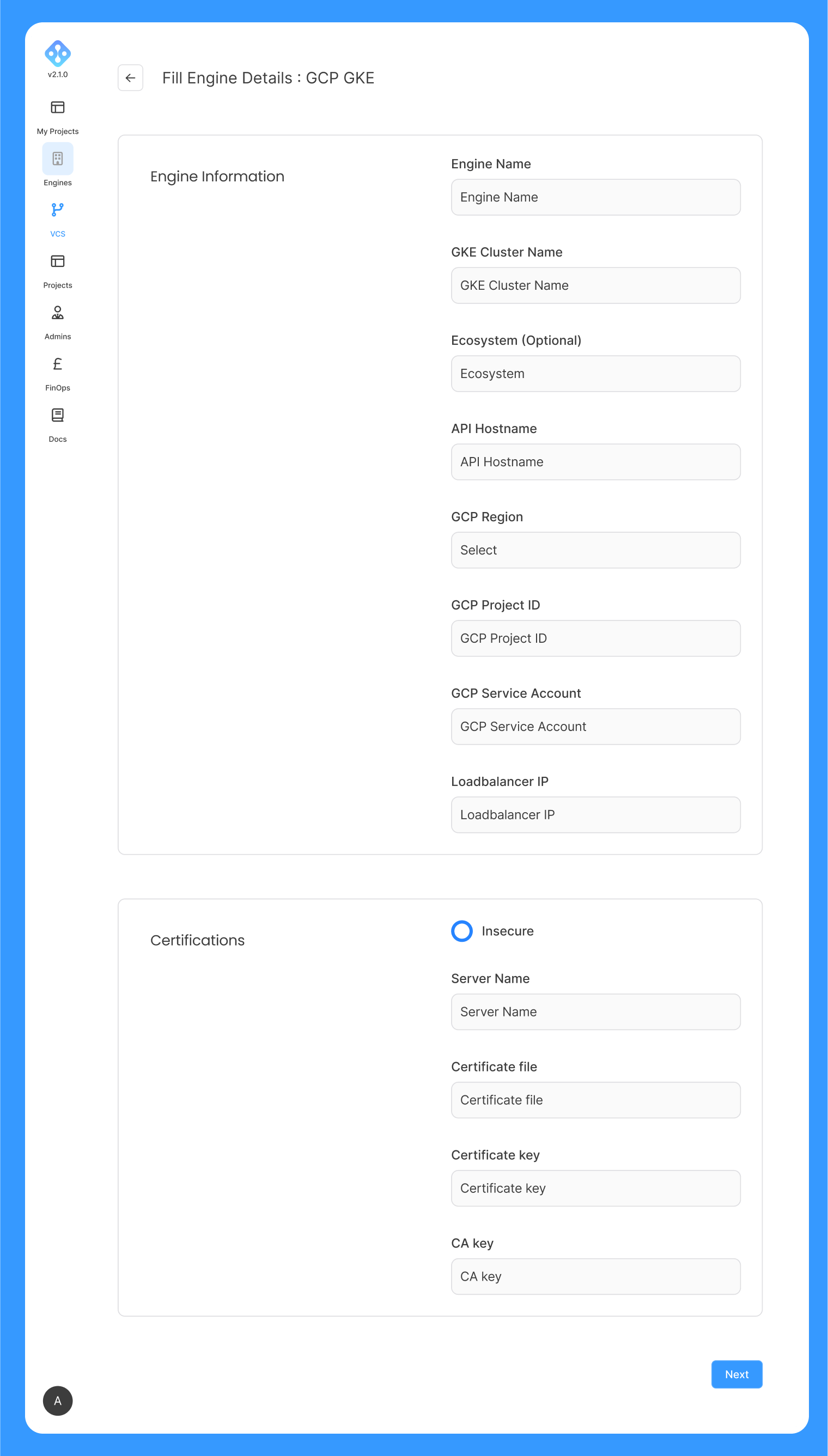
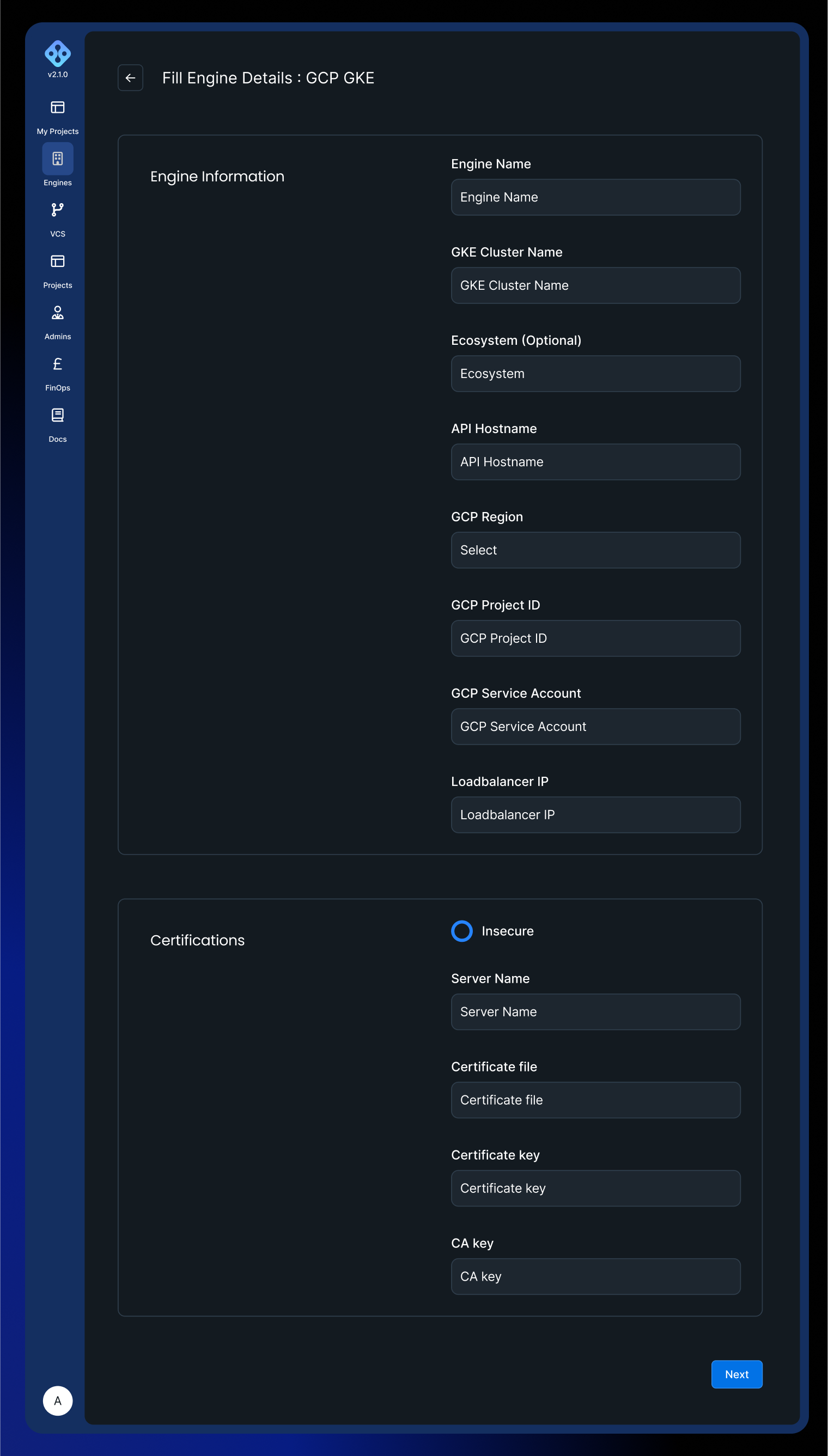
In the case of importing an engine, it is the administrator's responsibility to upgrade/patch the cluster.
AWS
If the cloud provider selected is AWS, the administrator can either create a EKS engine through AIchor or import an existing one.
Note All the regions available on AWS are supported by AIchor.
If the administrator would like AIchor to create an EKS cluster, then he needs to select "Create engine":
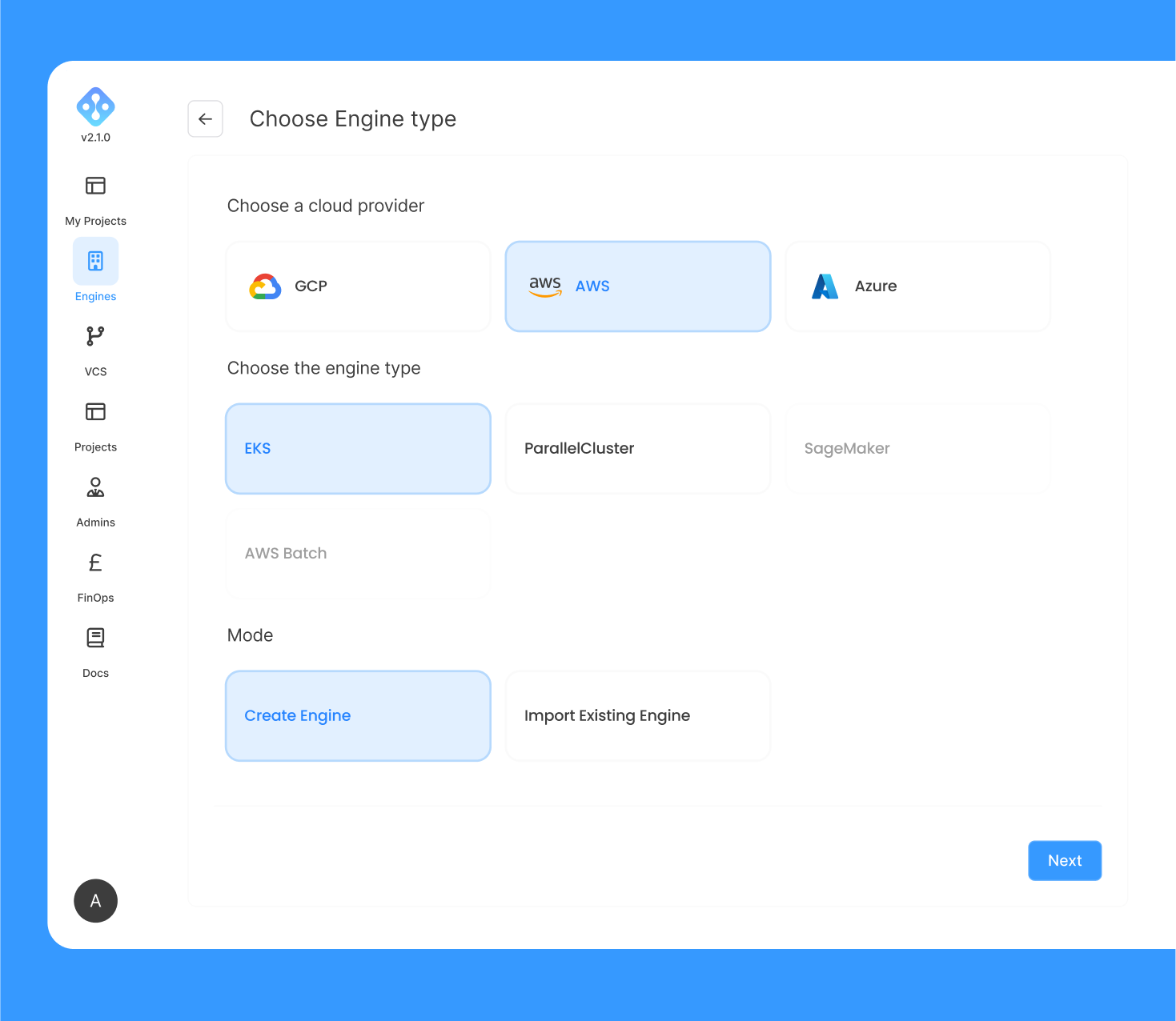
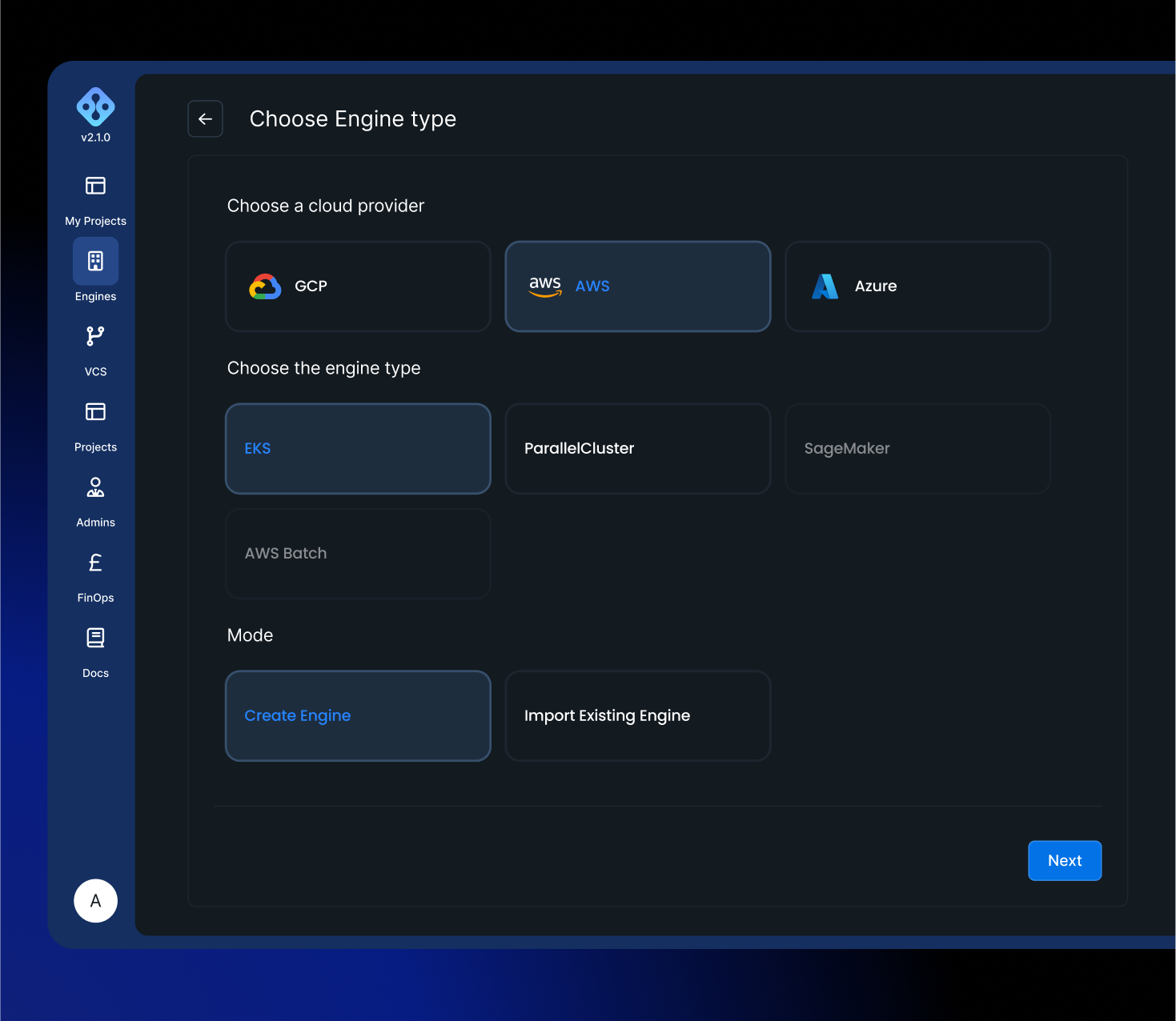
And provide the below information:
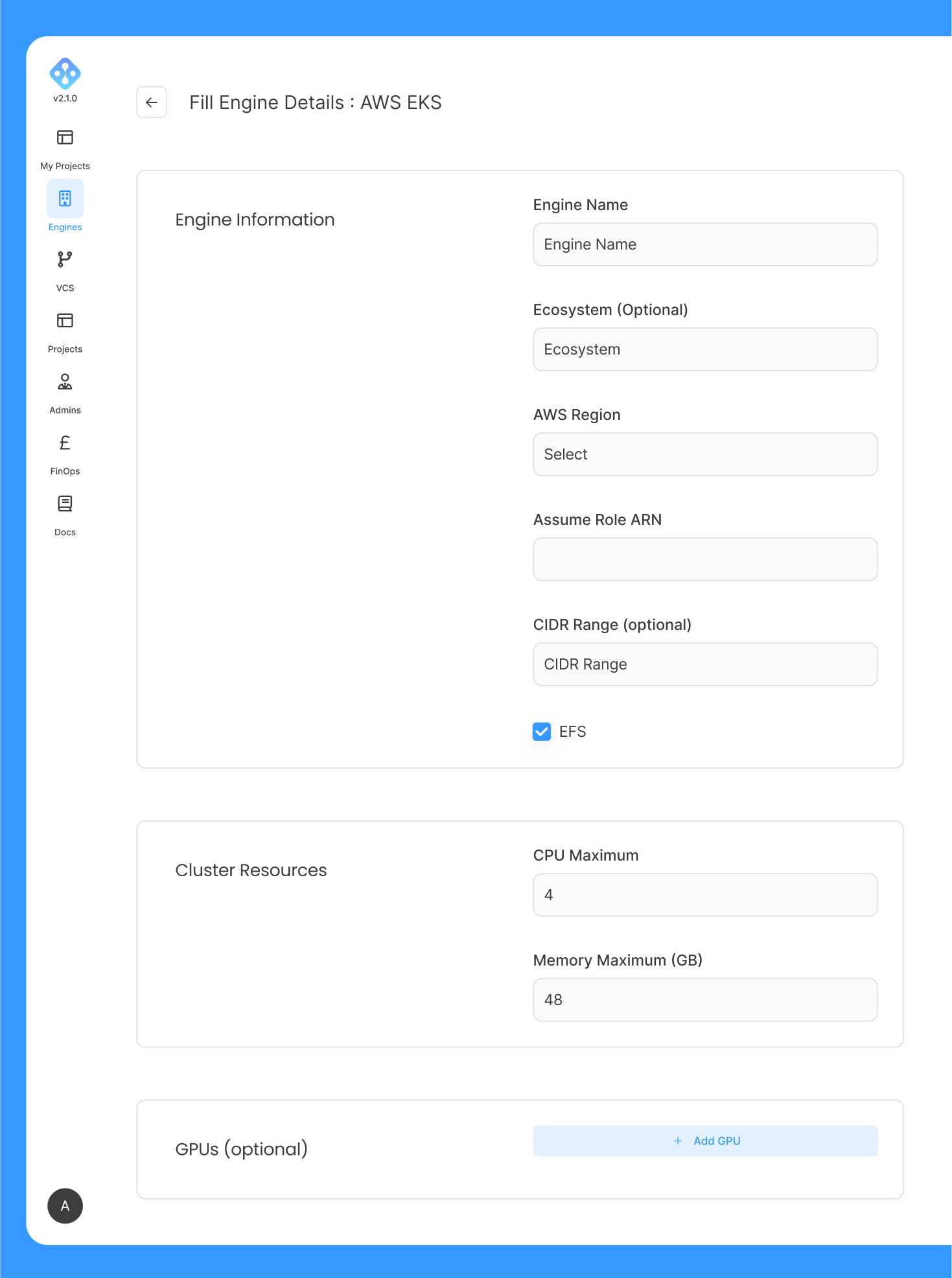
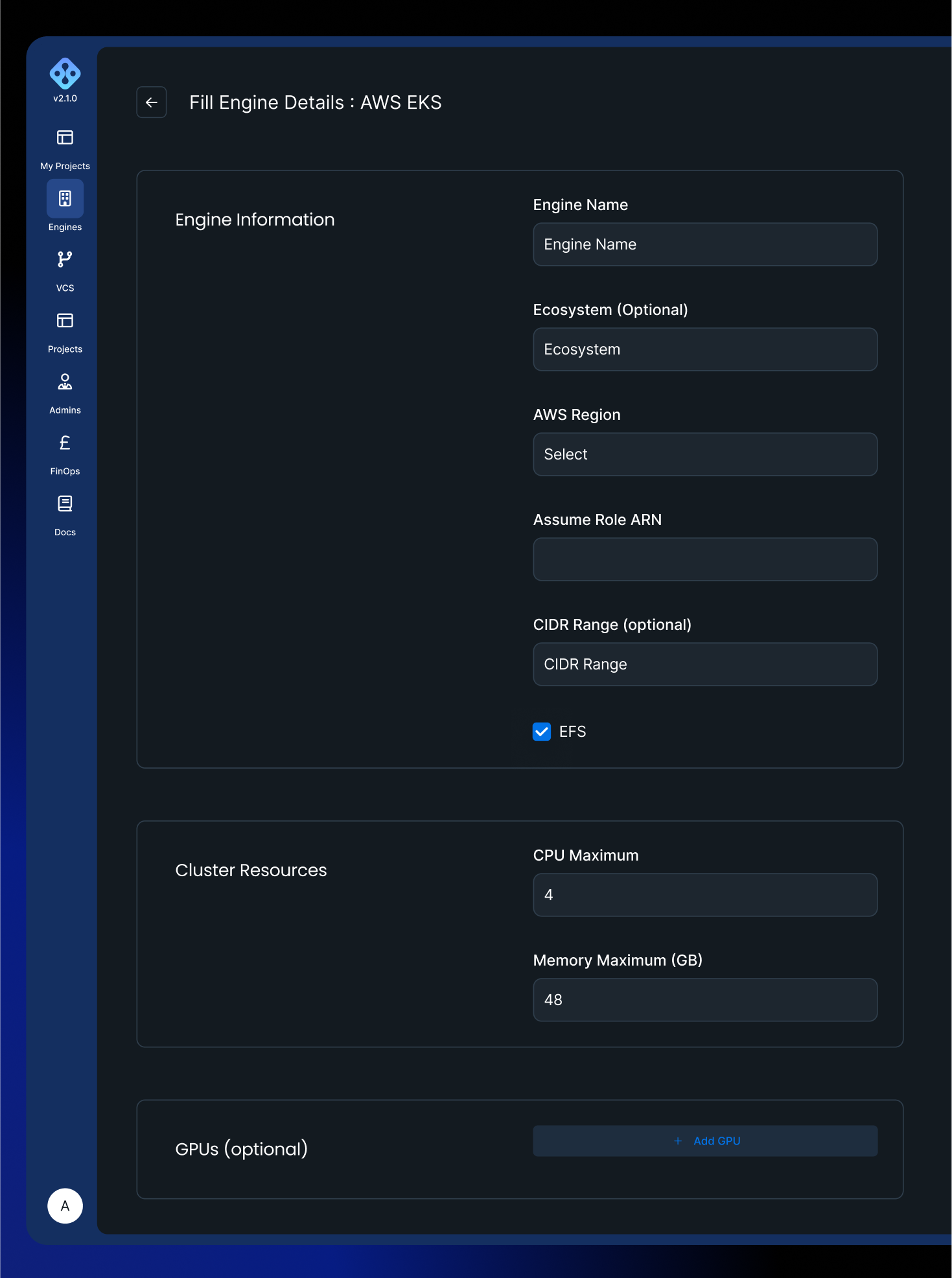
The deployment process lasts up to 15 minutes, once the process is finished, the engine should be displayed as ready on the engine management page.
Note The created EKS engine is created with the default AWS configuration: in a single region and multi-AZ.
If the administrator would like to import an existing EKS cluster created beforehand, then "Import Existing Engine" is selected:
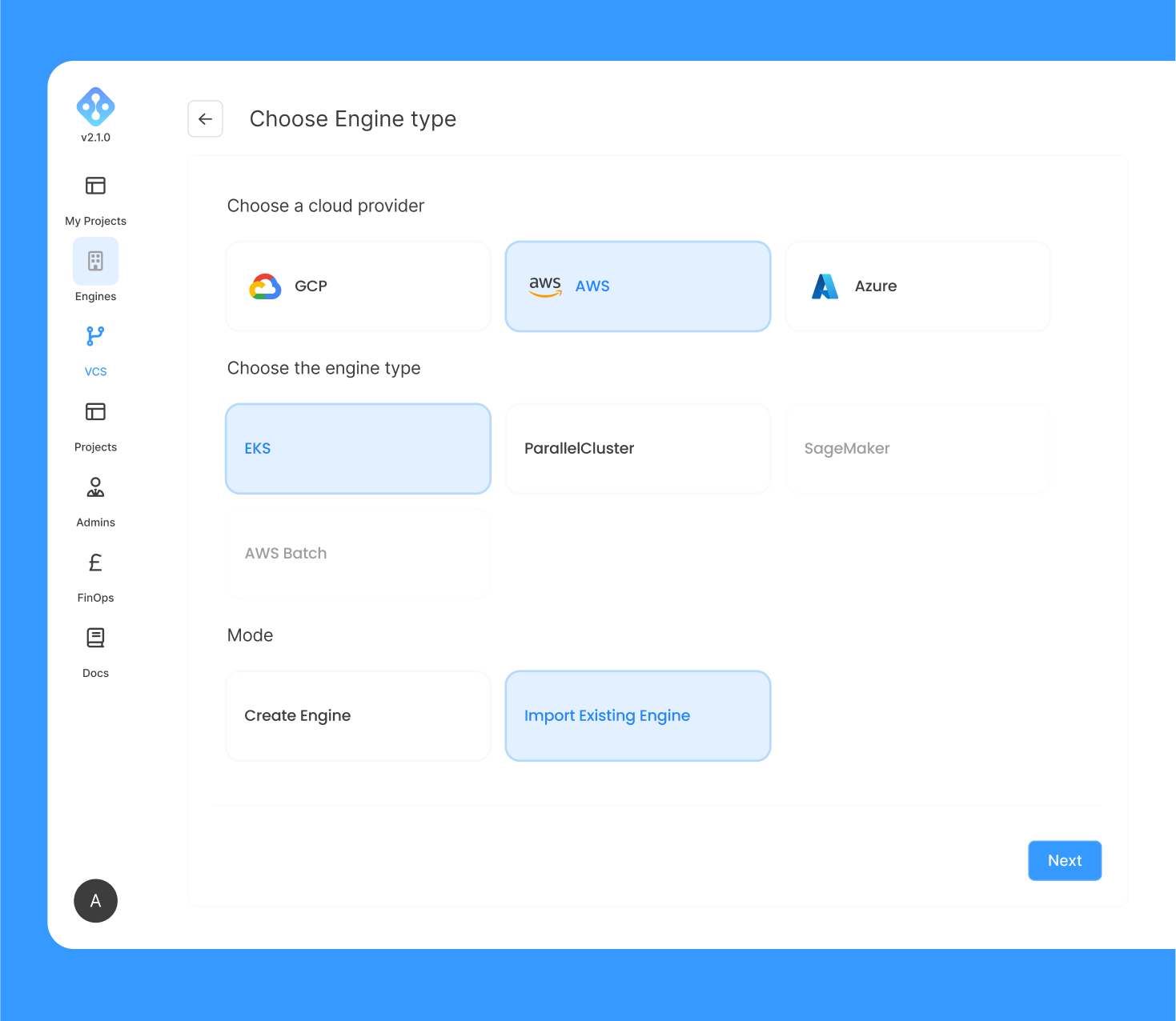
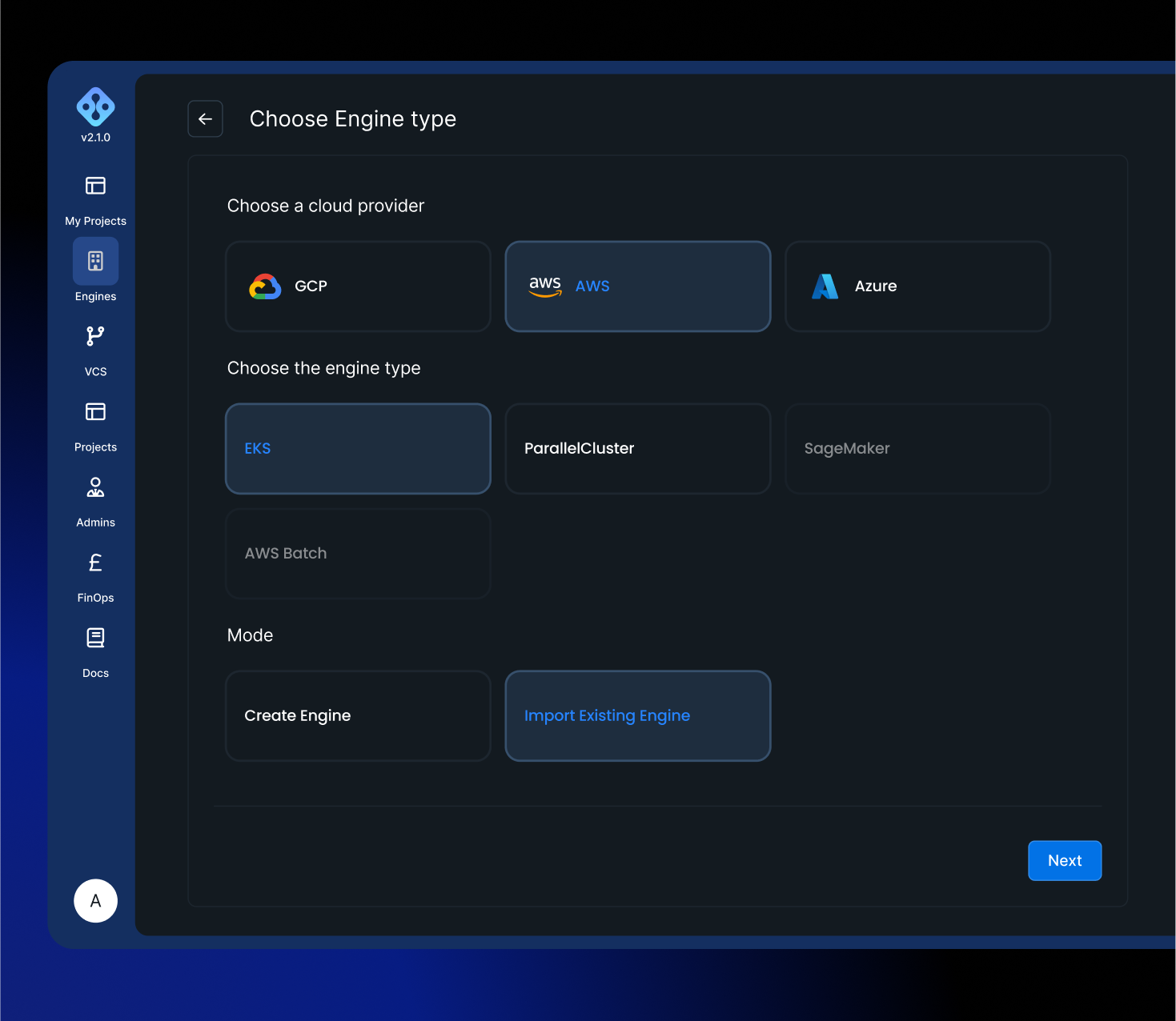
And provide the below information:
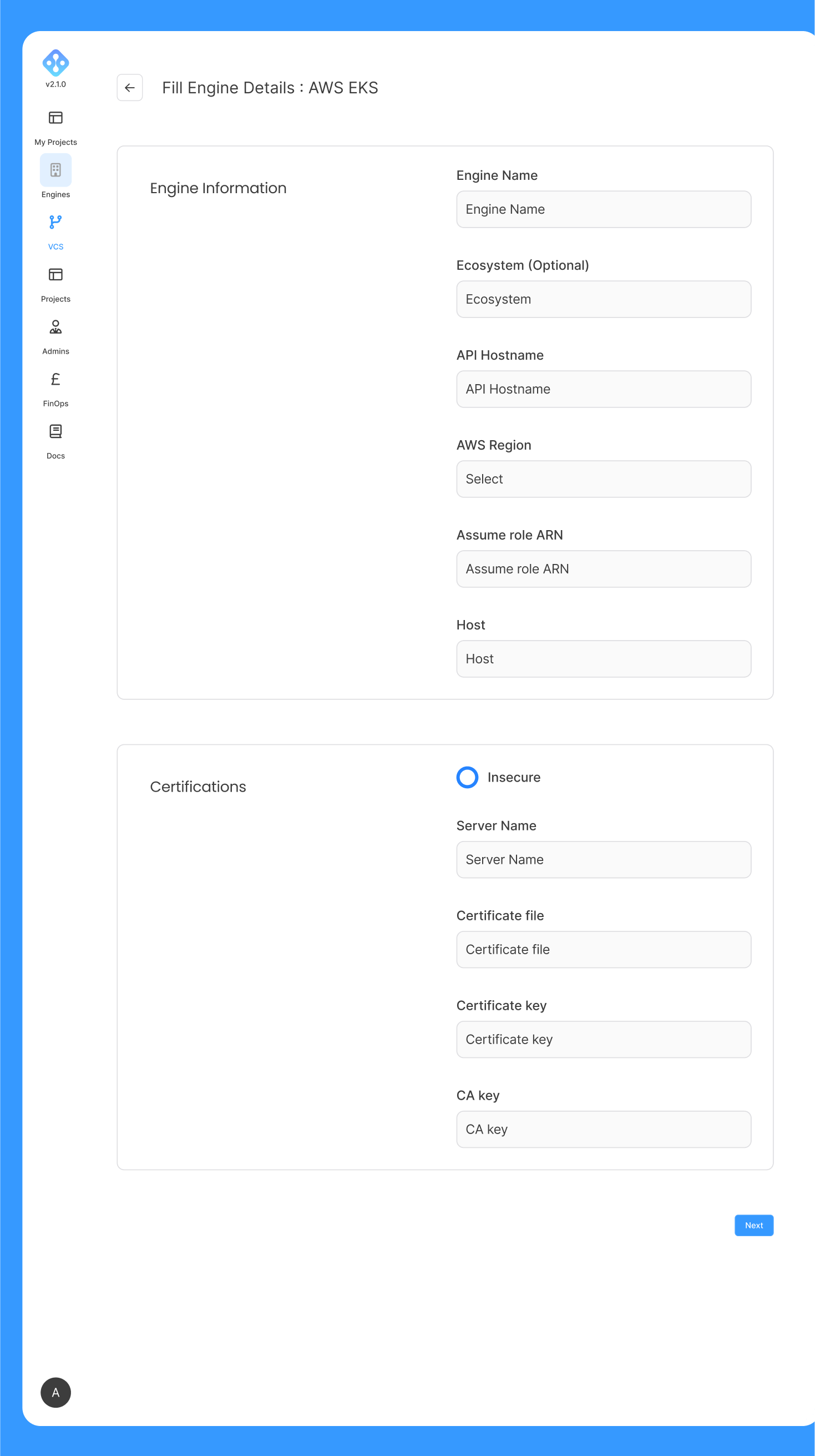
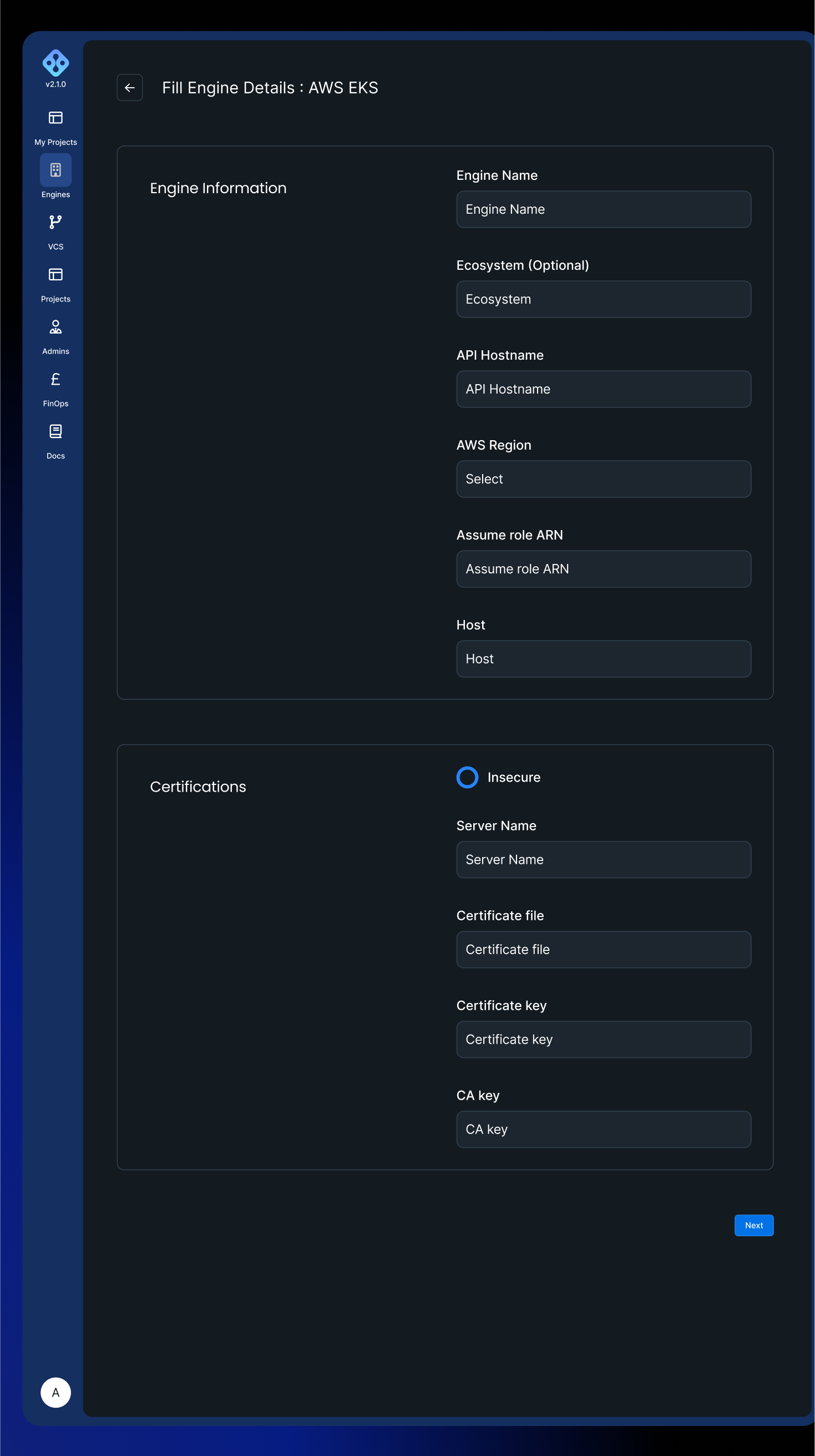
In the case of importing an engine, it is the administrator's responsibility to upgrade/patch the cluster.
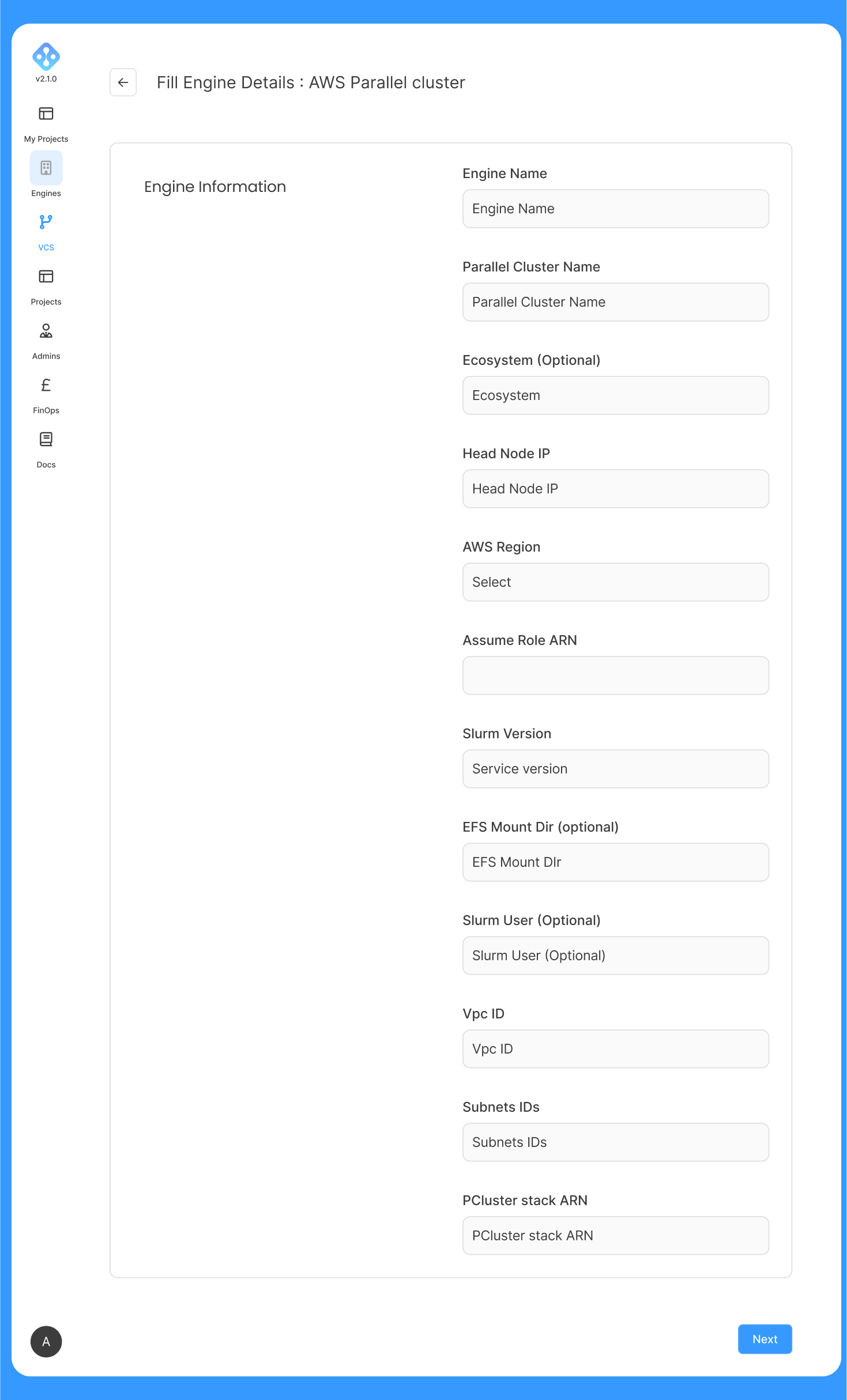
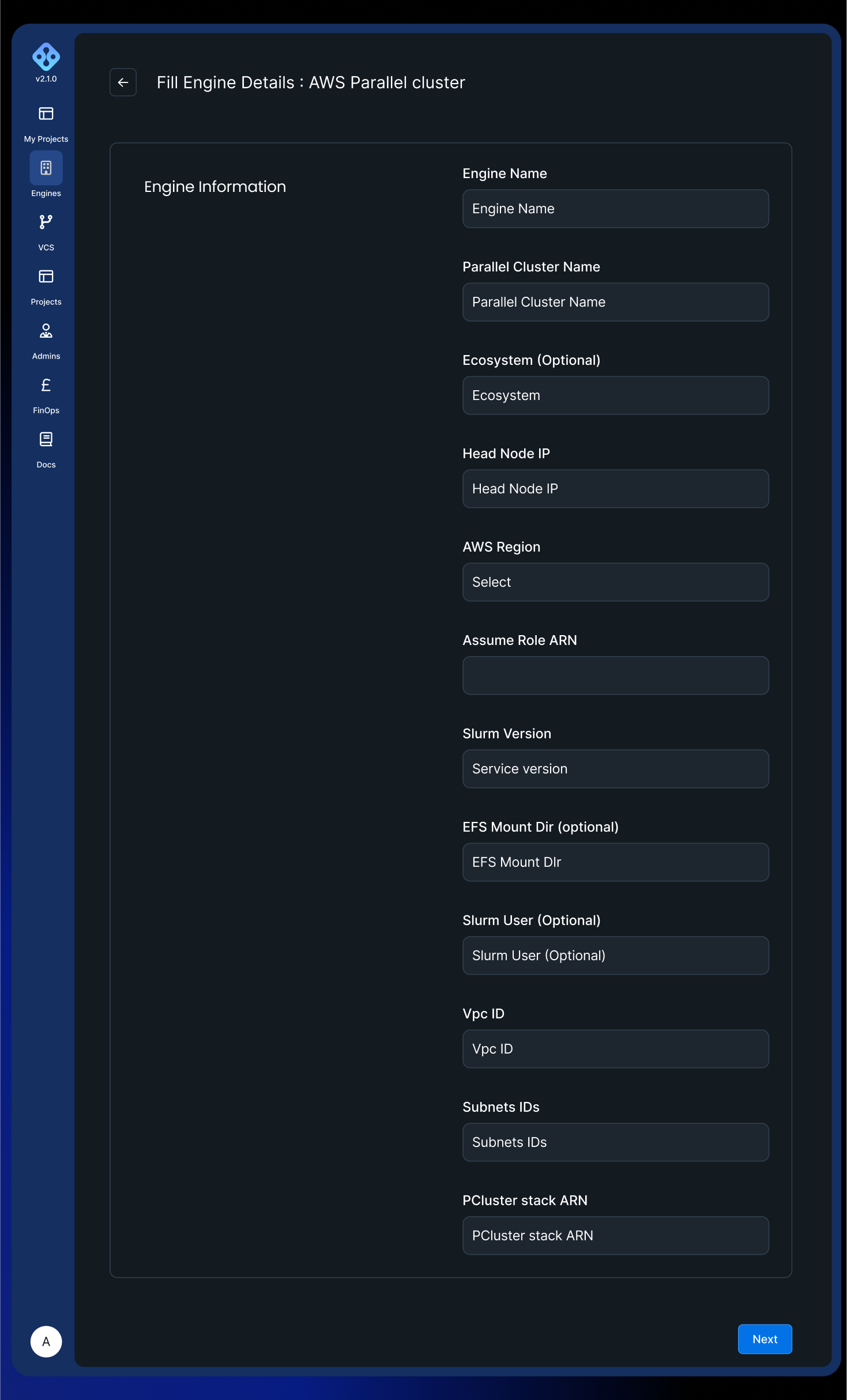
If the administrator would like to import an existing AWS ParallelCluster cluster created beforehand, then ParallelCluster Engine type is selected and finally "Import Existing Engine":
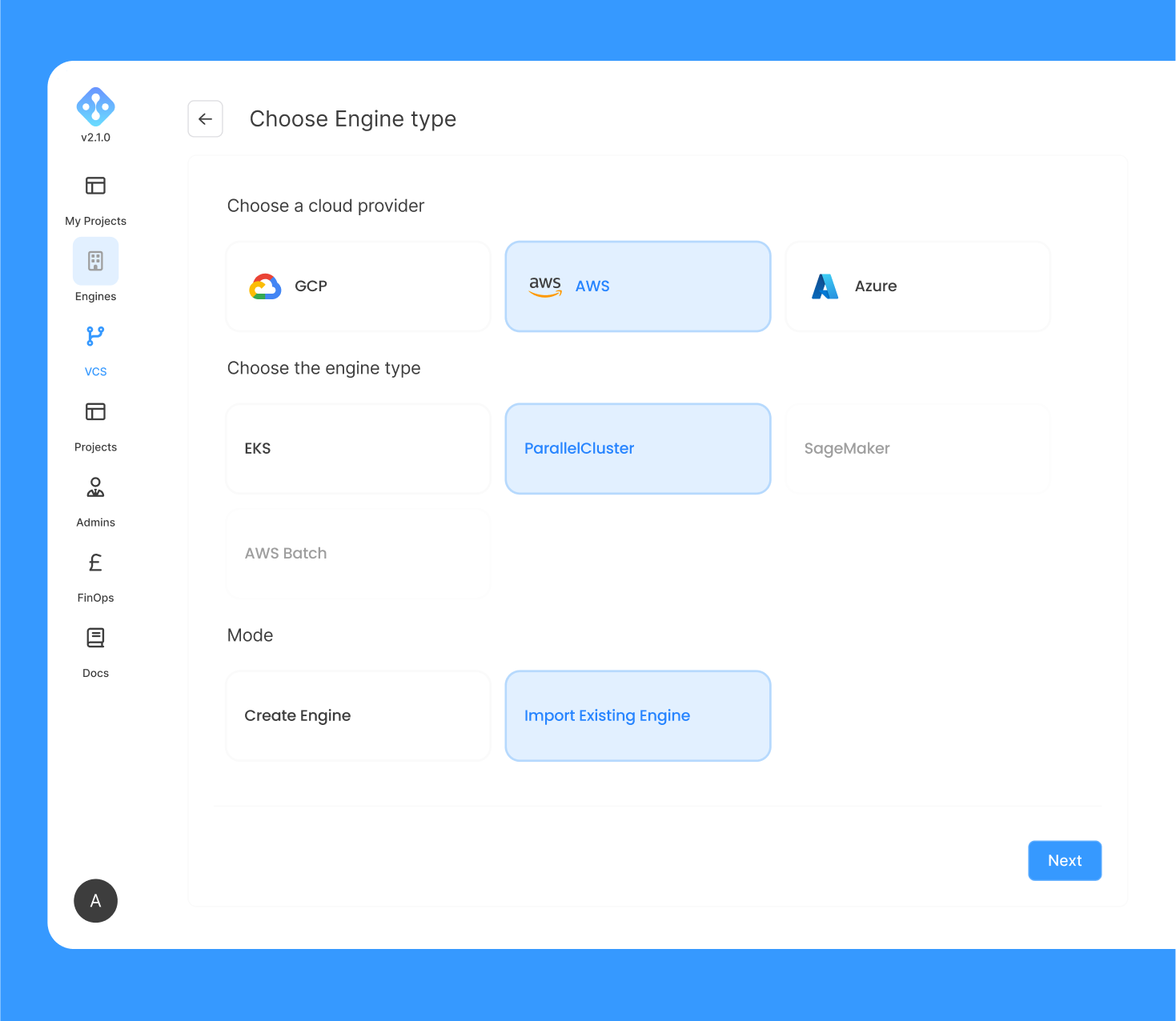
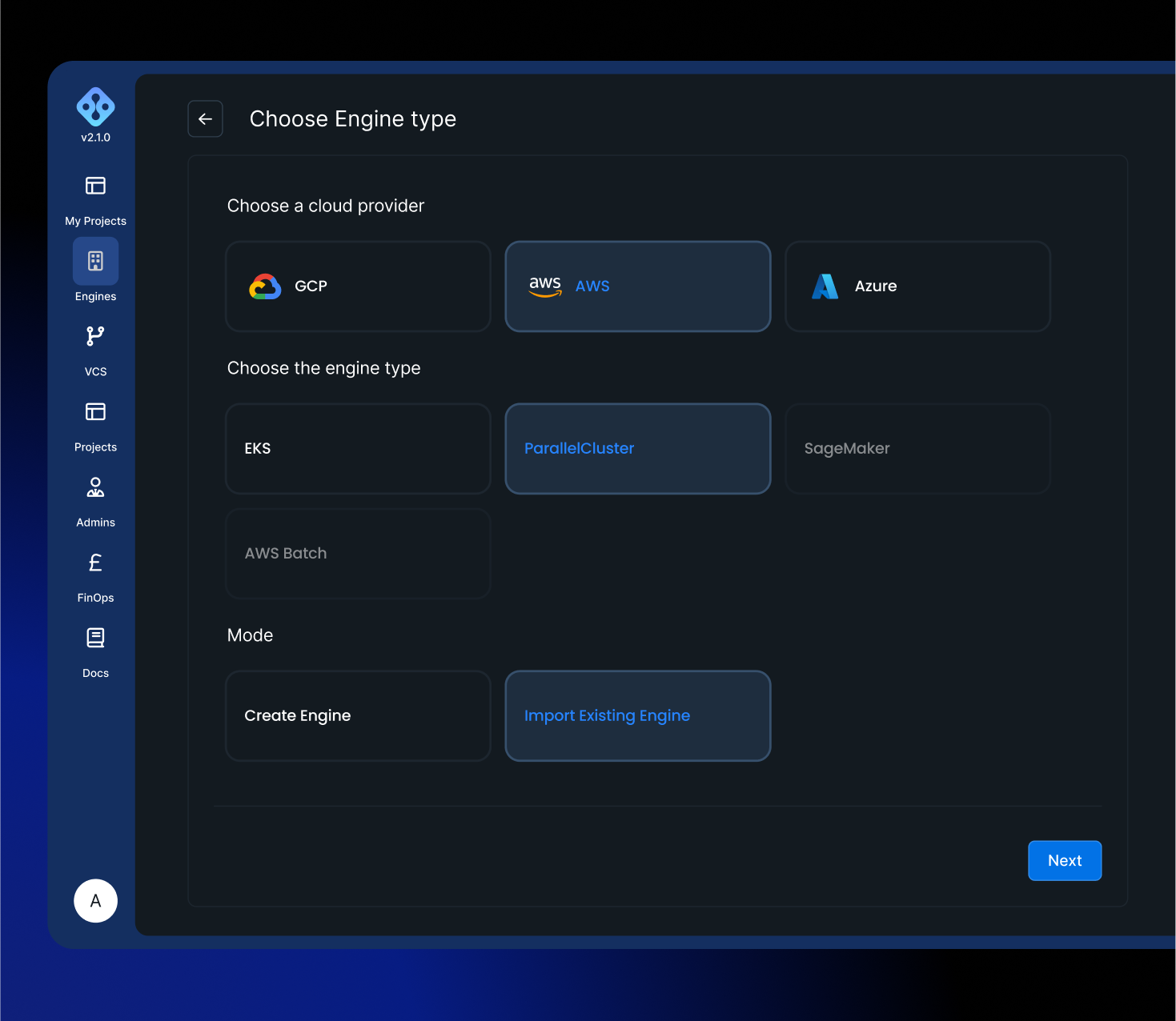
And provide the below information:
Note AIchor does not require an account with root privileges to perform engine creation or to execute jobs.
MS Azure
If the cloud provider selected is Azure, the administrator can create a AKS engine through AIchor.
Note All the regions available on Azure are supported by AIchor.
If the administrator would like AIchor to create an AKS cluster, then he needs to select "Create engine":
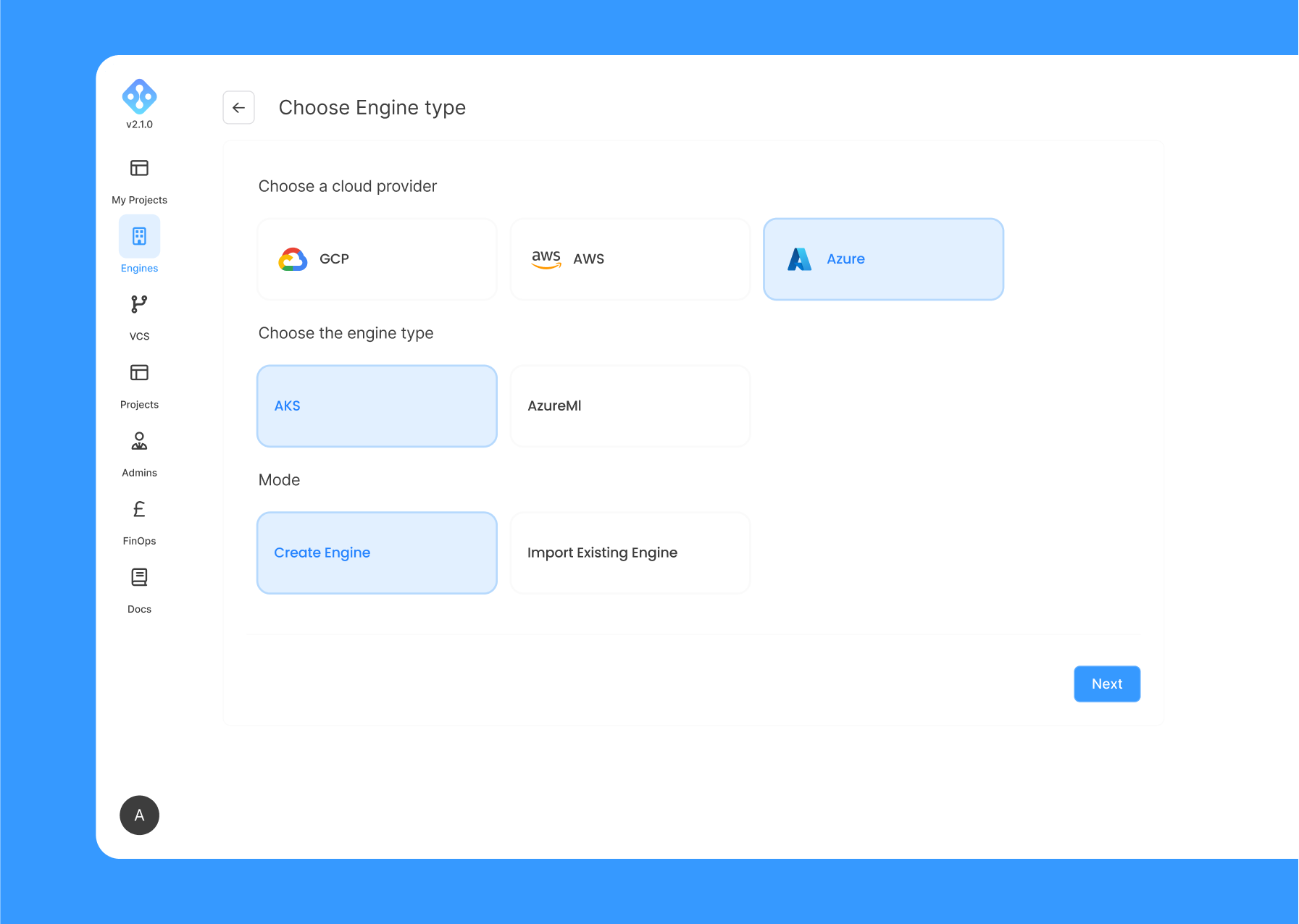
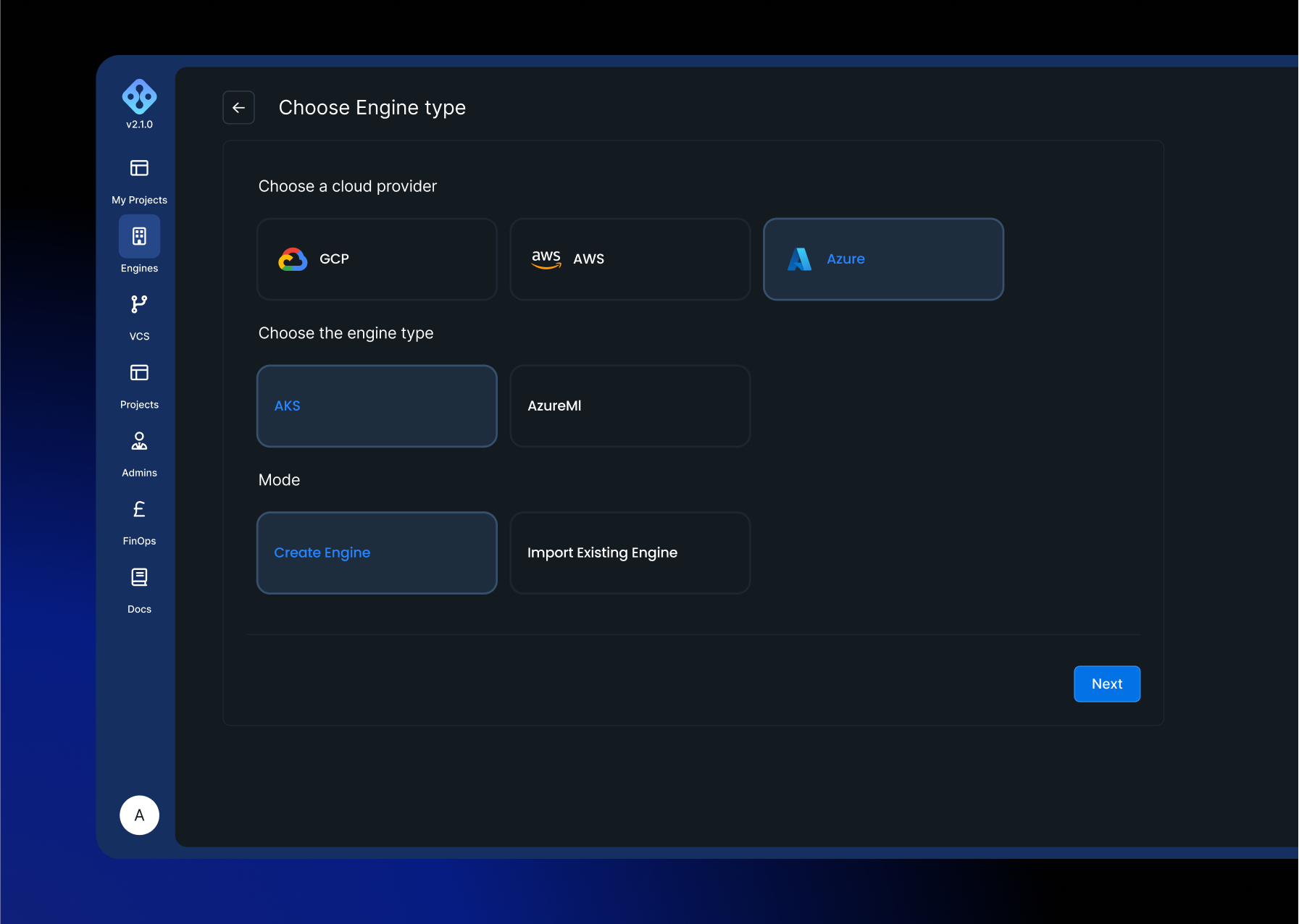
And provide the below information:
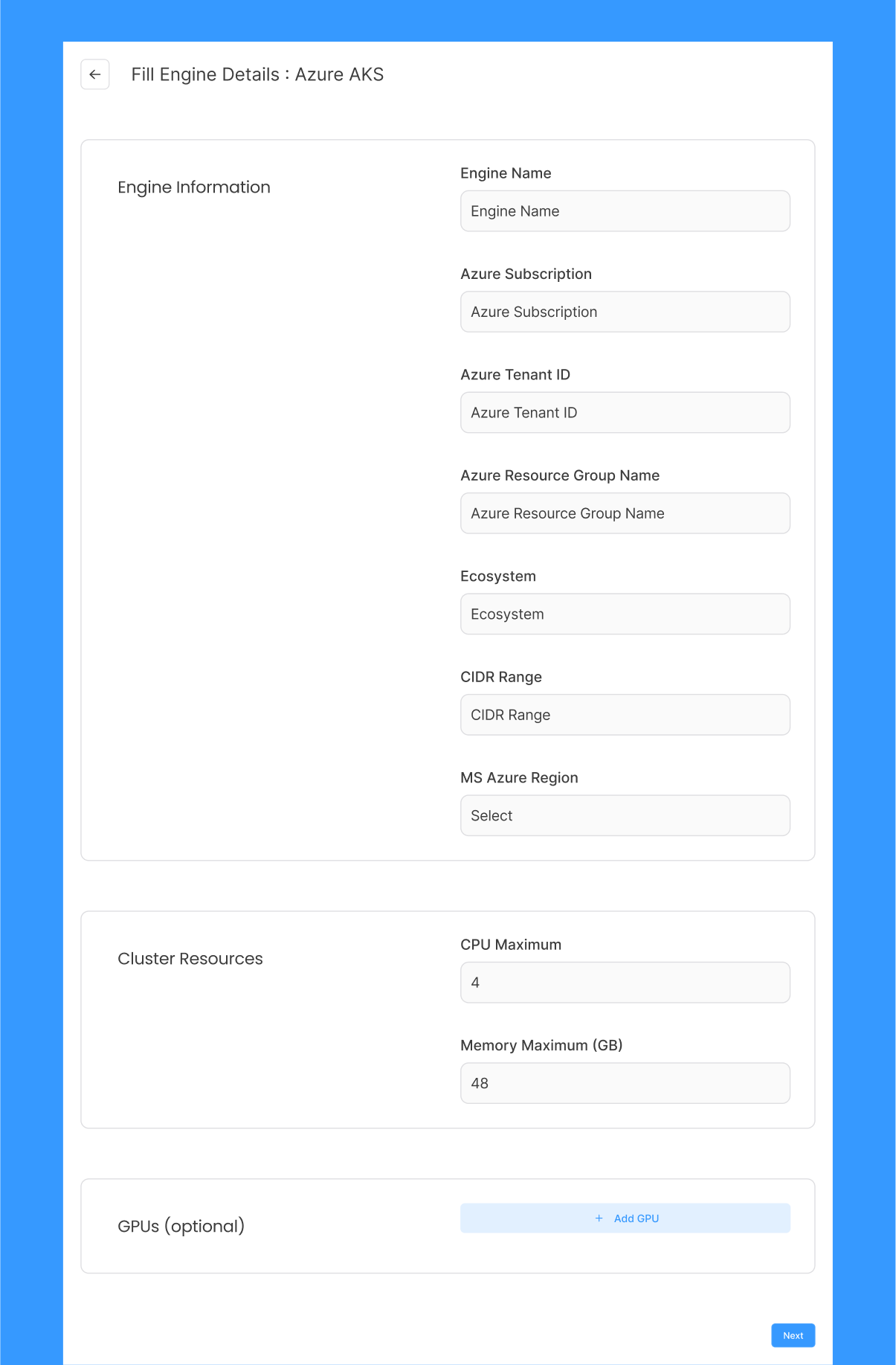
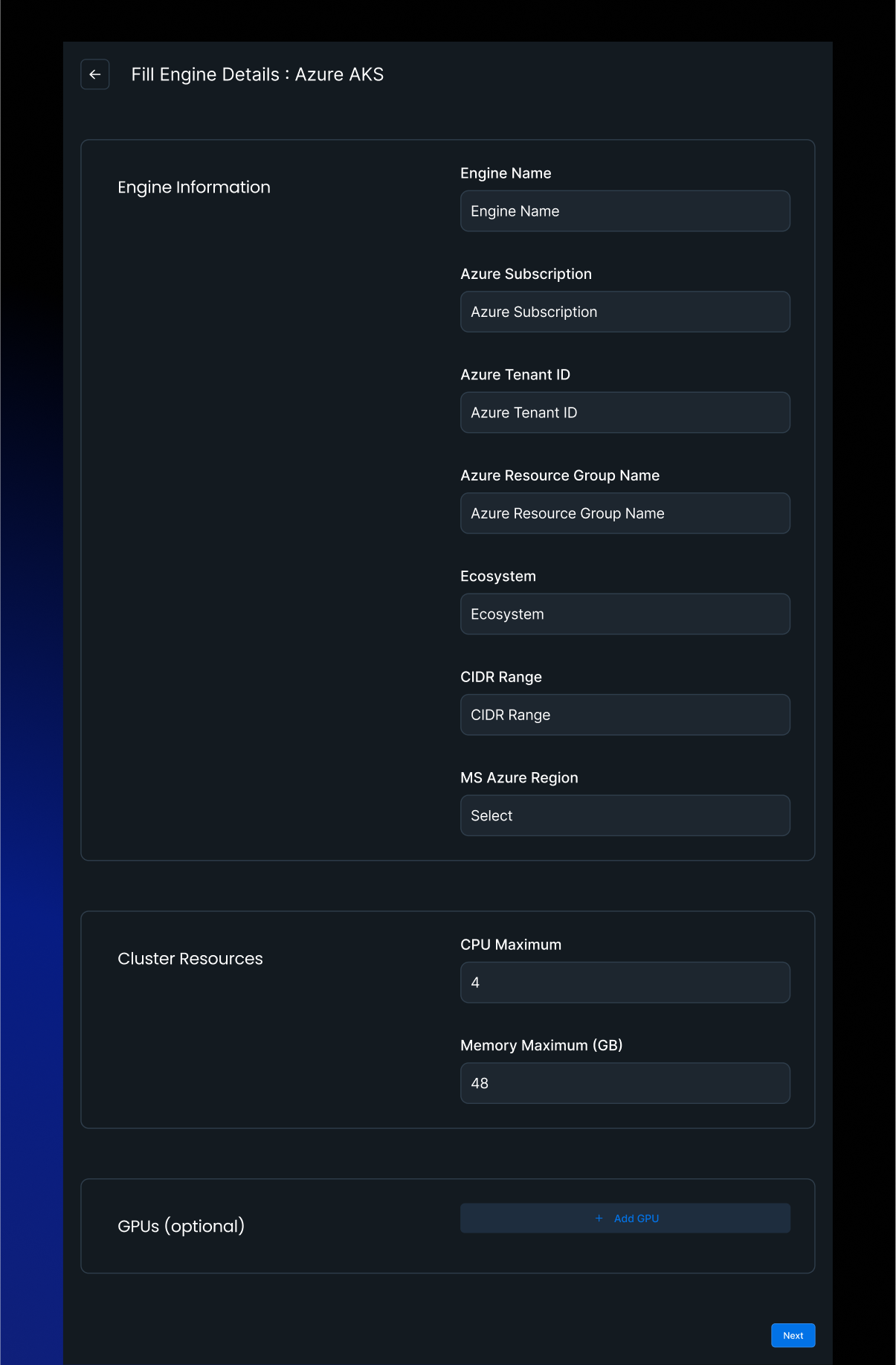
The deployment process lasts up to 15 minutes, once the process is finished, the engine should be displayed as ready on the engine management page.
Forms Fields
| Field name | Description | Example value |
|---|---|---|
| Engine name | Open text for the administrator | |
| Environment | Tag to be passed to IaaC - Required for specific organisations upon InstaDeep recommendation - Can be ignored | |
| Region | Drop down list (Region for the cloud provider) | London |
| Project ID | Project ID (GCP) | |
| Service account | Service account created by the GCP administrator to access cloud provider account | |
| CIDR Range | Value will be passed for VPC creation | |
| GKE/EKS Cluster name | GKE Cluster name on GCP (EKS on AWS) | |
| API Hostname | kube-api endpoint - found in the ~/.kube/config | e2b53b98-975d-4be7-9f5b-8dfd6b765d32 |
| Storage class | Used for Import k8s cluster | |
| Service token | To be deprecated - No static token for Cloud providers | |
| Certificates: Server name | TBC - can be removed | |
| Certificate file | TBC - can be removed | |
| Certificate key | TBC - can be removed | |
| CA File | Certificate on the ~/.kube/config | |
| Assume Role ARN | Role ARN created on provider side (AWS) with specific permissions (*) | arn:aws:iam::account-id:role/role-name |
| Base host | Specific for organisations upon InstaDeep recommendation - Can be ignored | |
| Parallel Cluster Name | Name of the pCluster on AWS | |
| Head Node IP | Head node ip address (API Hostname equivalent for ParallelCluster) | |
| Slurm version | needed for Slurm api - used when a parallelCluster is imported | v0.0.39 |
| EFS Mount dir | mounted directory used by parallelCluster | /mnt/shared/ |
| Slurm user | User used for slurm tasks | slurm |
| Azure subscription | Target MS Azure subscription (TBC upon WIM tests) | |
| Azure Service Principal | Equivalent of service account in GCP (TBC upon WIM tests) | |
| Azure Resource Group Name | Equivalent of Projects on GCP (TBC upon WIM tests) | |
| Load balancer DNS | NLB Used for AWS EKS import |
(*) Permissions need to be listed.