V2 CLI docs (deprecated)
⚠️ These docs refer to version 2 of the CLI, they are kept here for helping with migrating to v3.
AIchor CLI is a command-line interface for interacting with the AIchor service. This CLI allows users to log in, retrieve information about projects and experiments, set default projects and engines, resubmit experiments, and trigger experiments from a local package.
Installation
Prerequisite: Ensure you have uv installed on your system. You can download it from docs.astral.sh.
- Install the cli:
uv tool install aichor-cli --index https:///__CLIHOST_PLACEHOLDER__/
💡 Tip: If you run into dependency resolution issues (e.g. version conflicts), try using the --index-strategy unsafe-best-match option:
uv tool install aichor-cli --index https:///__CLIHOST_PLACEHOLDER__/ --index-strategy unsafe-best-match
Option 2 — Install with pip 🐍
pip install --extra-index-url https:///__CLIHOST_PLACEHOLDER__/ aichor-cli
Usage
To use AIchor CLI, run the following command:
aichor
An output similar to the following should be displayed:
Usage: aichor [OPTIONS] COMMAND [ARGS]...

  AIchor CLI for managing experiments.

Options:
  --version  Show the version and exit.
  --help     Show this message and exit.

Commands:
  auth       Authentication commands
  configure  Configure token
  generate   Generate storage credentials
  get        Get resources
  set        Set default project or engine
  unset      Remove default project or engine
  submit     Submit an experiment (local or commit-sha mode)
  resubmit   Resubmit an experiment
  init       Setup directory with template files for a project
  logs       Stream logs for an experiment
  ls         List contents of a storage location
  rm         Delete a file or folder from a storage location
  mkdir      Create an empty directory in a storage location
  cp         Copy files between local and cloud storage, or within cloud storage
Authentication
aichor auth key
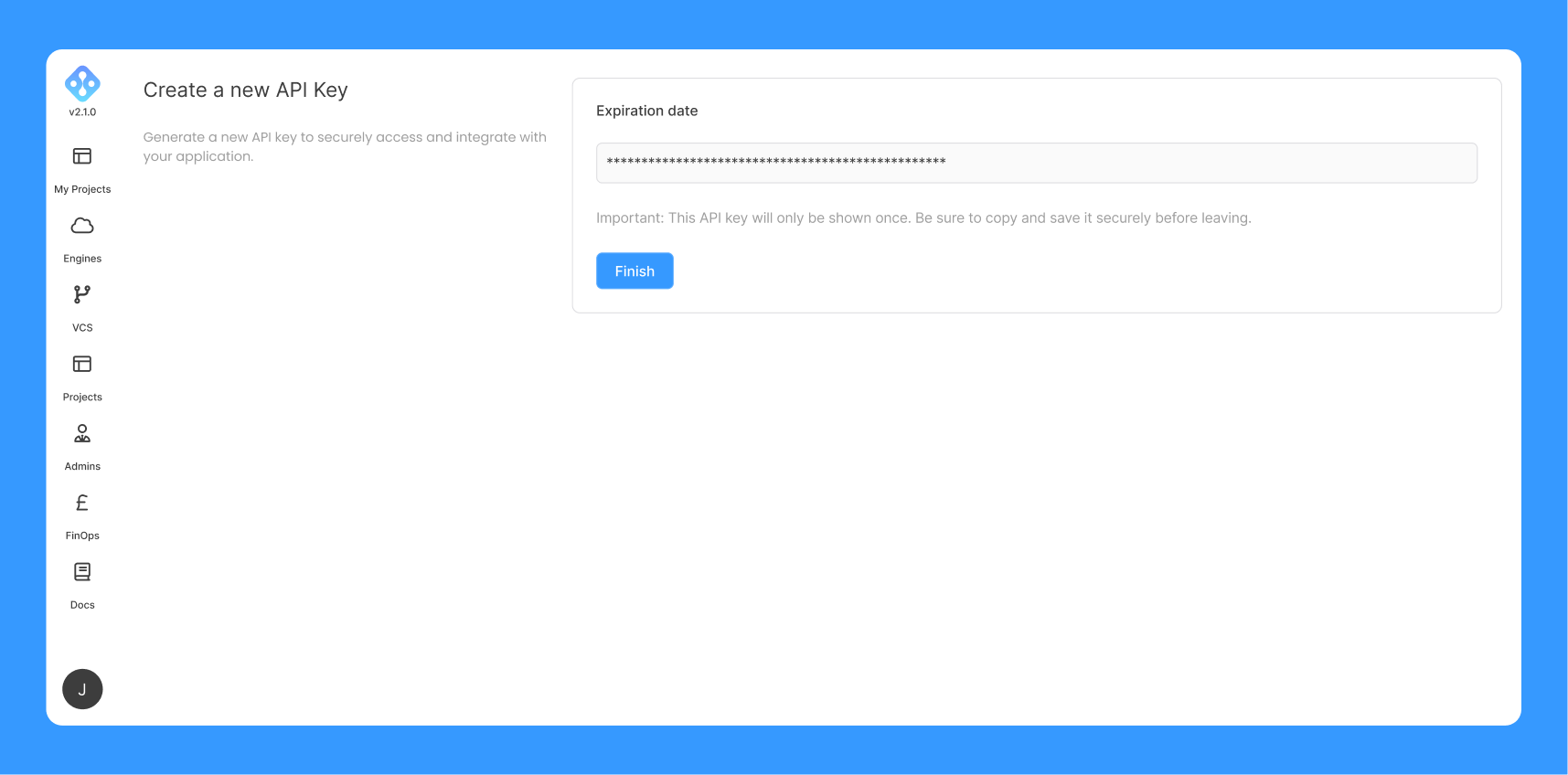
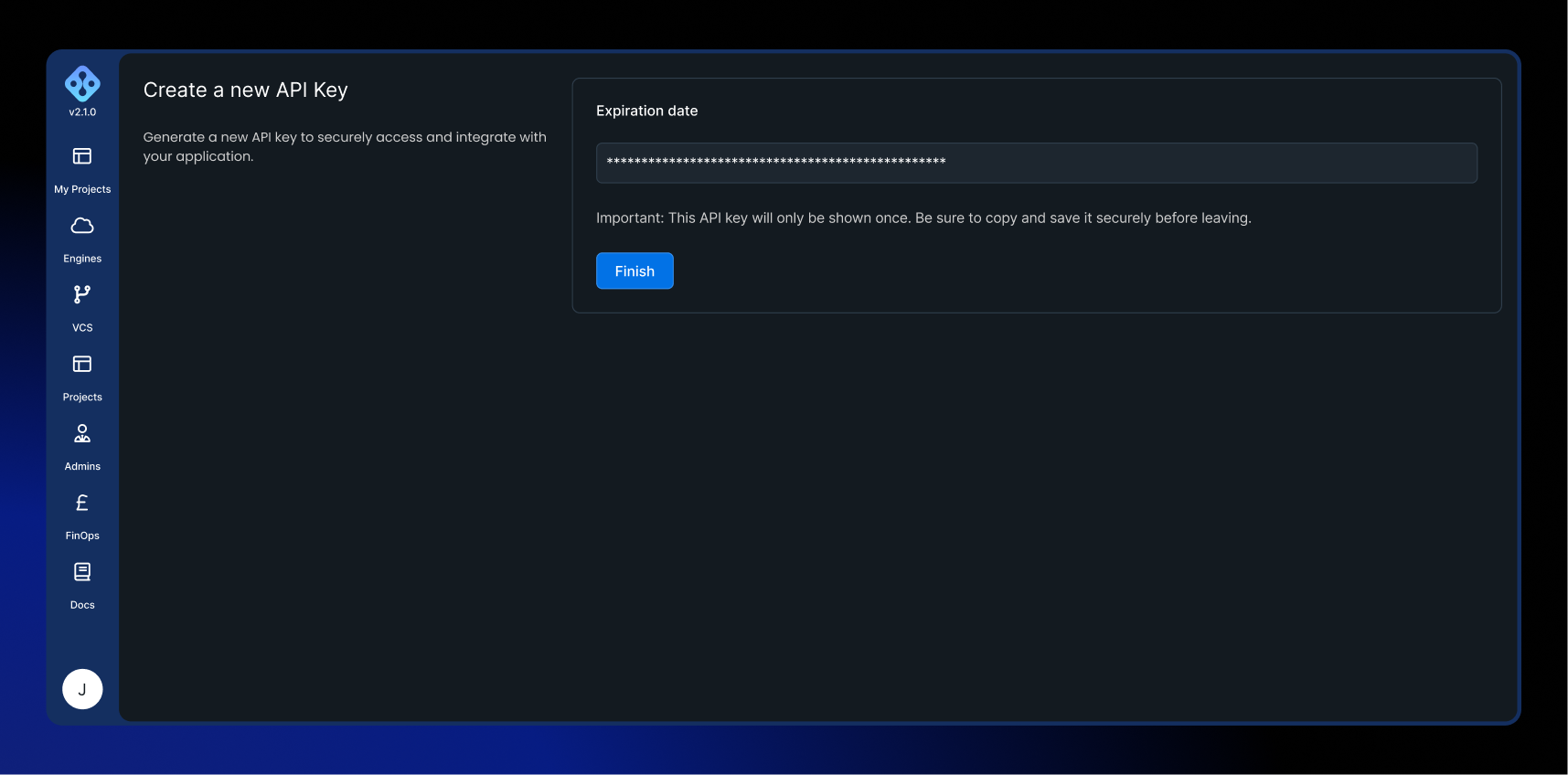
Authenticate using an API key. To create an API Key, select your user icon and then select Credentials.
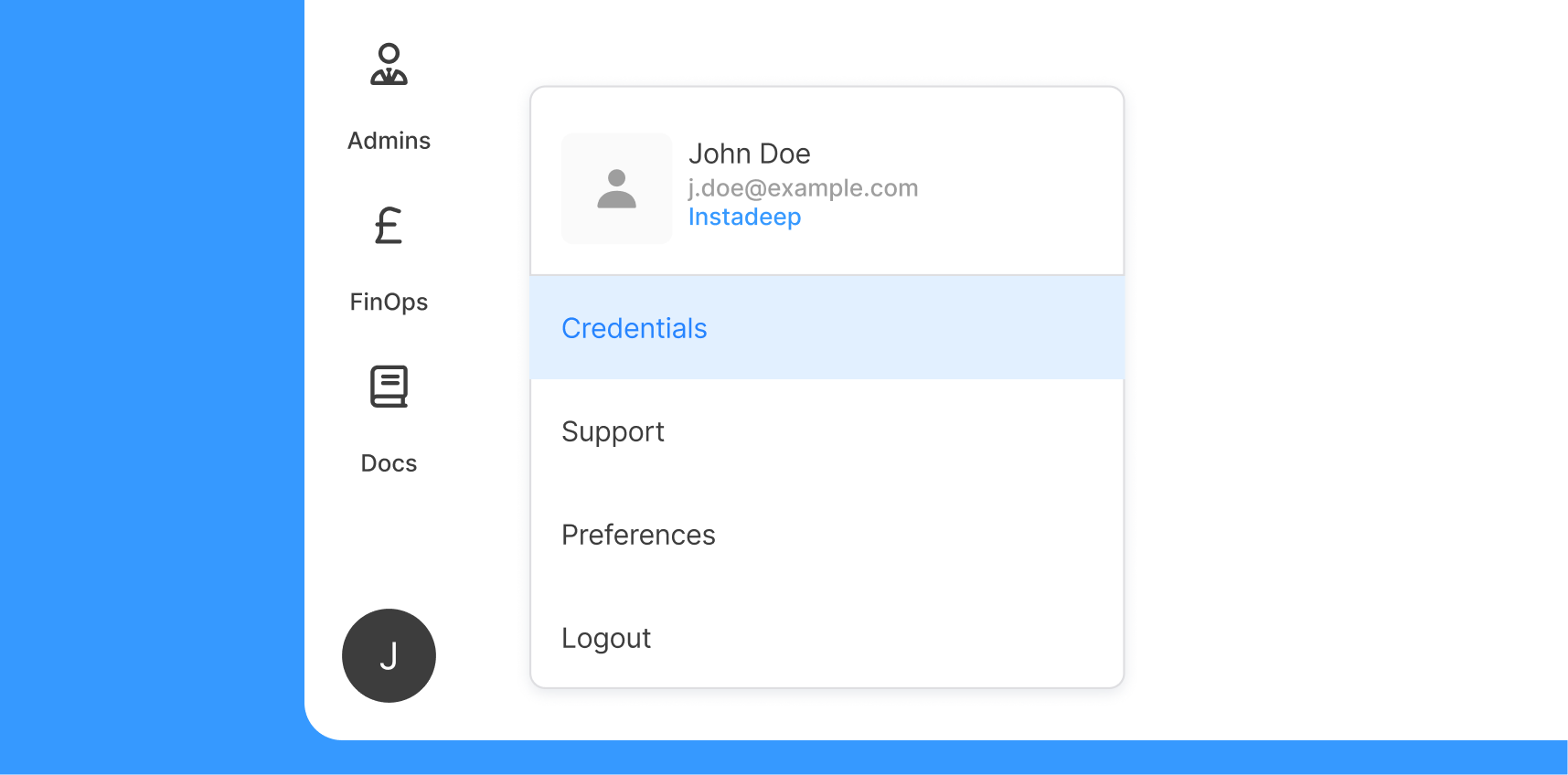
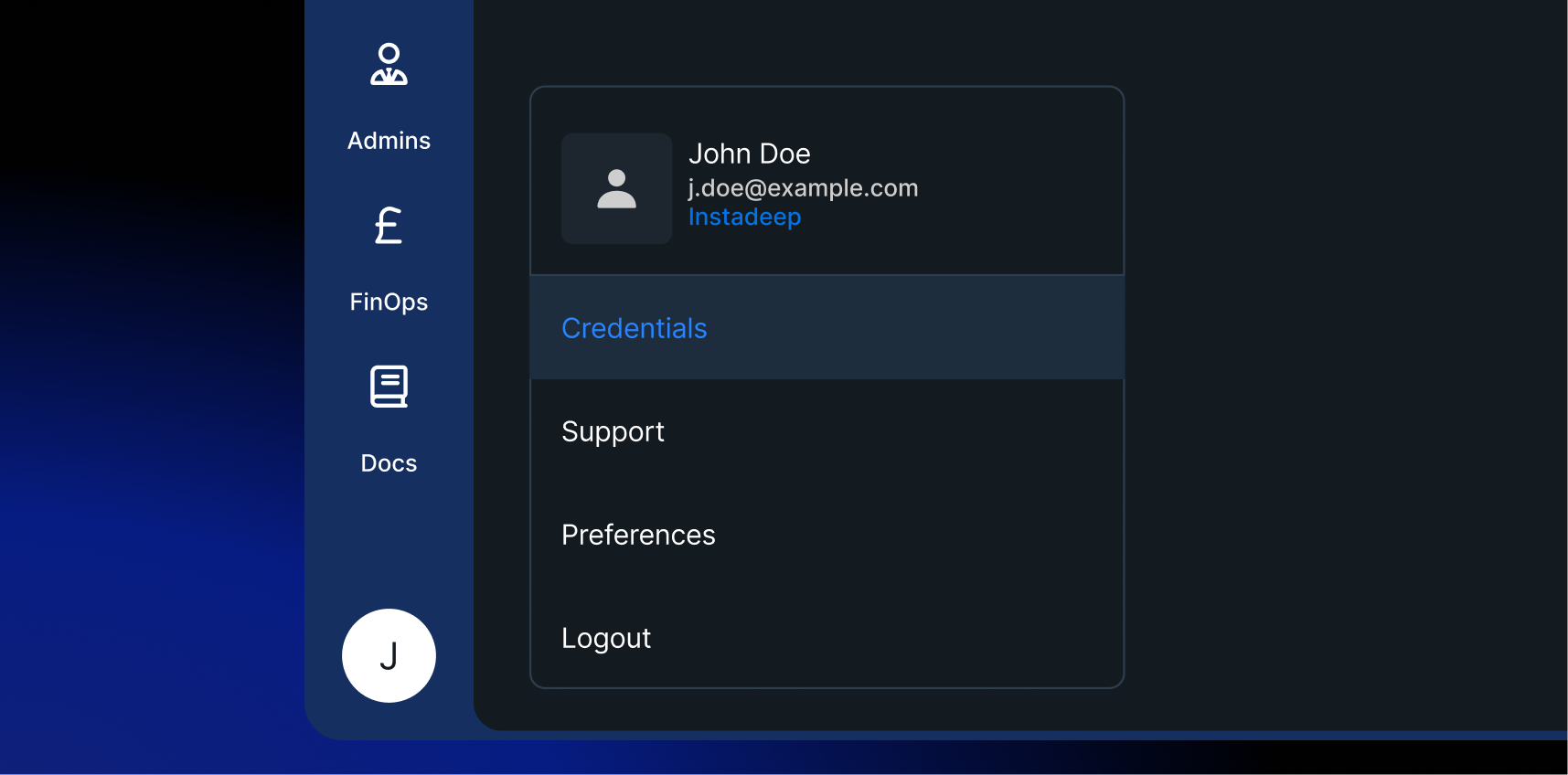
Next, choose the expiration date (optional) and select Create.
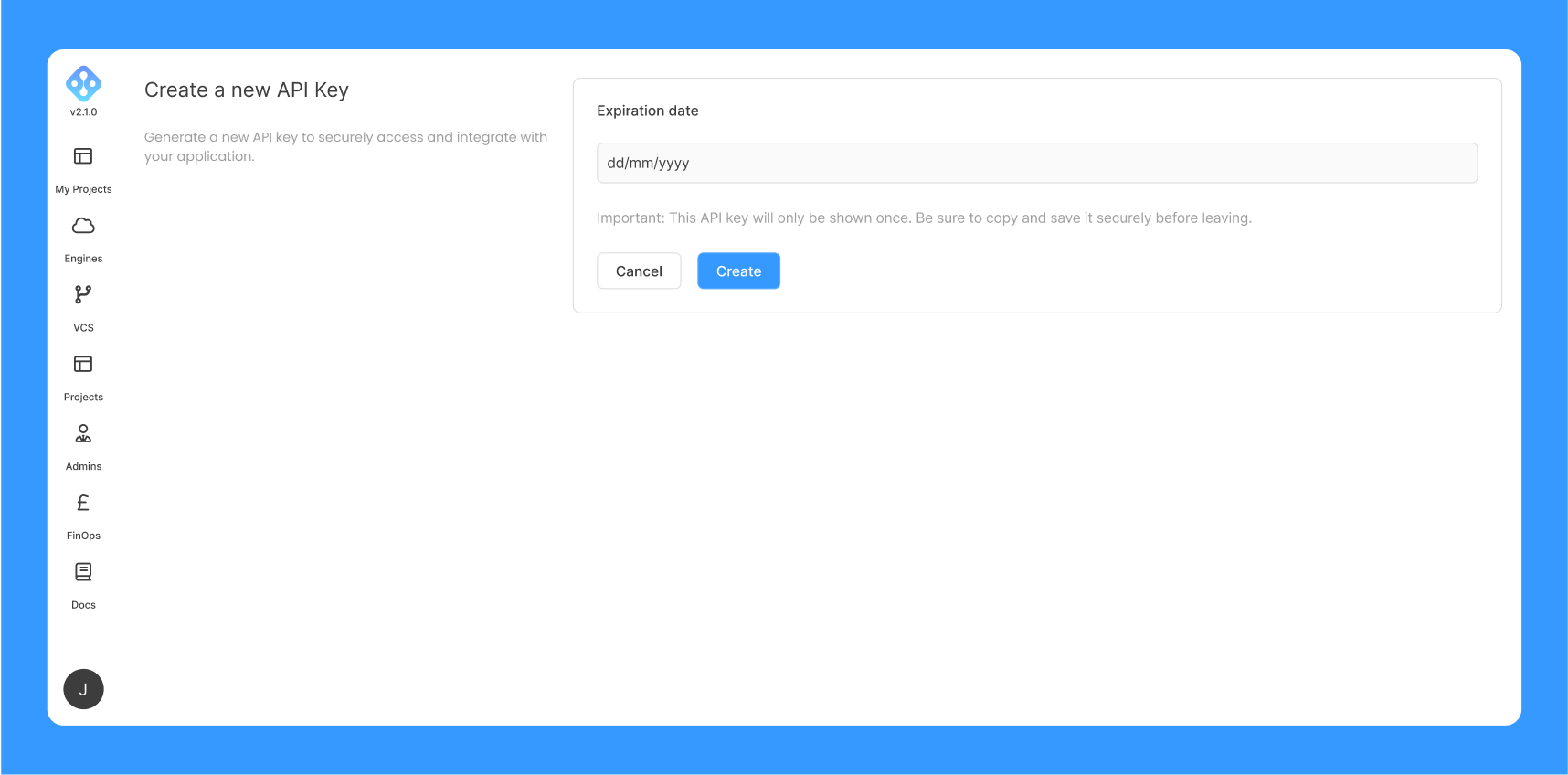
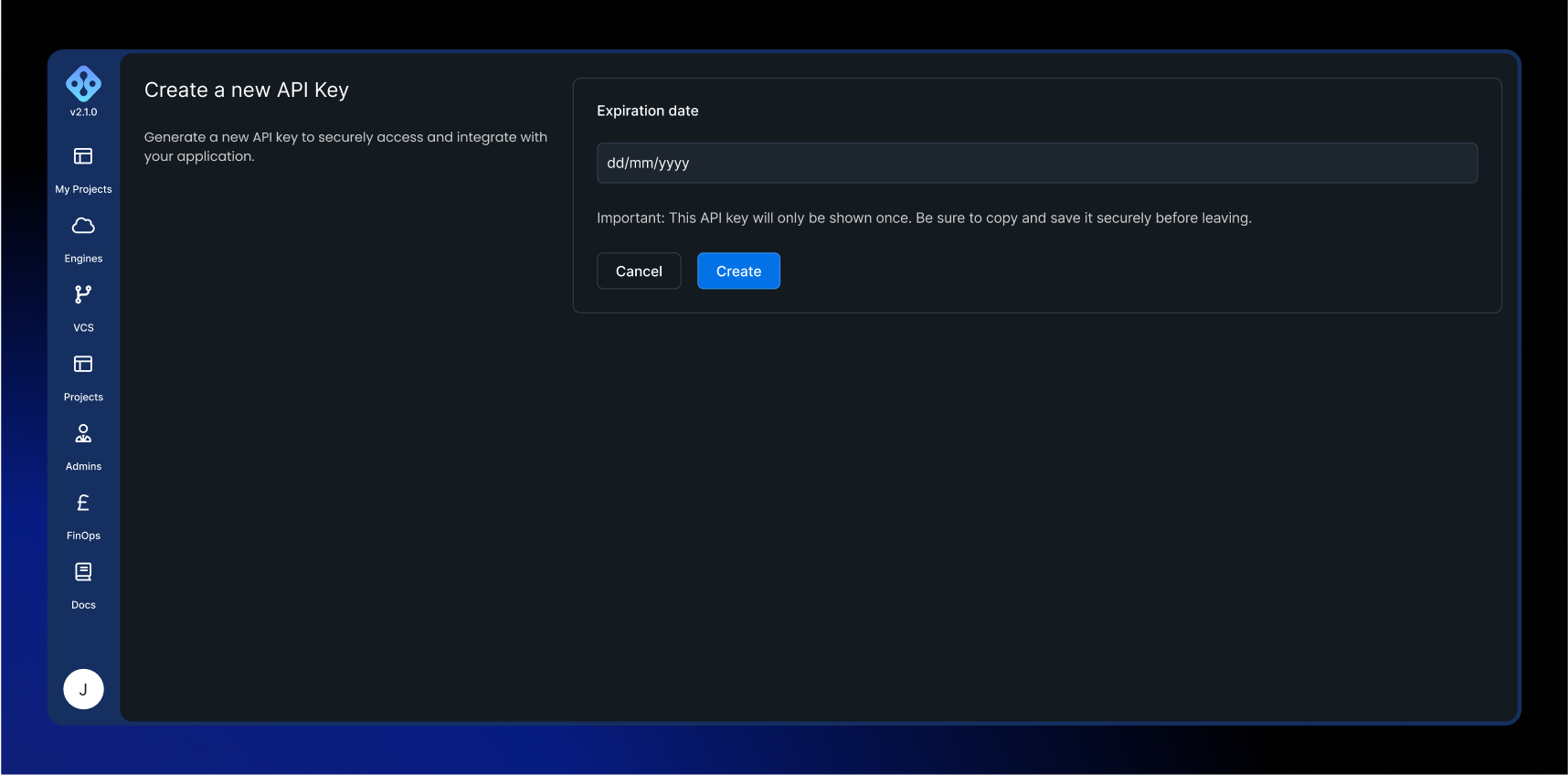
Then copy and save the API Key before leaving.
Usage
aichor auth key [options]
| Flag | Short | Default | Description |
|---|---|---|---|
--apikey <api_key> | API key to authenticate with. If omitted, you will be prompted interactively. |
If the API key is valid, the CLI will store it for future use. Otherwise, an error message will be displayed.
Examples
# Interactive prompt
aichor auth key

# Pass the API key directly
aichor auth key --apikey YOUR_API_KEY

# Using an environment variable (recommended for CI/CD)
export AICHOR_API_KEY=YOUR_API_KEY
aichor auth key
Now if you are unable to login, you can manually configure your access token with:
aichor configure
Project & Engine Configuration
aichor get projects
Retrieve the list of projects you have access to.
Usage
aichor get projects|project [options]
| Flag | Short | Default | Description |
|---|---|---|---|
--project-id <project_id> | Filter the output to a single project. | ||
--engine-name <engine_name> | List only projects associated with that engine. | ||
--output <type> | table | Output format. Supported values: table, json. |
Example
aichor get project --project-id <project_id> --output json
aichor set project
Set a default project for all subsequent commands.
Usage
aichor set project [options]
| Flag | Short | Default | Description |
|---|---|---|---|
--project-id <project_id> | (Required) The project to set as default. |
Note: It is necessary to set a default project to proceed with your actions. Alternatively, you can specify the project ID each time you execute a command.
Example
aichor set project --project-id <project_id>
aichor unset project
Remove the current default project from context.
Usage
aichor unset project
aichor set engine
Set a default engine for all subsequent commands.
Usage
aichor set engine [options]
| Flag | Short | Default | Description |
|---|---|---|---|
--engine-name <engine_name> | (Required) The engine to set as default. |
Note: It is necessary to set a default engine to proceed with your actions. Alternatively, you can specify the engine name each time you execute a command.
Example
aichor set engine --engine-name <engine_name>
aichor unset engine
Remove the current default engine from context.
Usage
aichor unset engine
Experiment Management
aichor get experiments
Retrieve the list of experiments in a project. The output is limited to 50 experiments per page by default.
Usage
aichor get experiments [options]
| Flag | Short | Default | Description |
|---|---|---|---|
--project-id <project_id> | Project whose experiments are listed (falls back to default project if unset). | ||
--engine-name <engine_name> | Filter experiments by engine. | ||
--page-number <int> | Page number for manual pagination. | ||
--page-size <int> | 50 | Number of experiments per page. | |
--interactive | Enable interactive pagination. | ||
--output <type> | table | Output format. Supported values: table, json. |
Example
aichor get experiment --experiment-id <experiment_id> --output json
aichor get pods
Retrieve pods associated with an experiment.
Usage
aichor get pods [options]
aichor get pod [options]
| Flag | Short | Default | Description |
|---|---|---|---|
--experiment-id <experiment_id> | (Required) The experiment to fetch pods for. | ||
--pod-id <pod_id> | Filter to a single pod (use with get pod). | ||
--output <type> | table | Output format. Supported values: table, json. |
Examples
# List all pods for an experiment
aichor get pods --experiment-id <experiment_id> --output json

# Get a single pod
aichor get pod --experiment-id <experiment_id> --pod-id <pod_id> --output json
aichor submit local experiment
Submit an experiment from your local repository.
Usage
aichor submit local experiment [options]
| Flag | Short | Default | Description |
|---|---|---|---|
--repo-dir <repo_path> | (Required) Path to your local repository. | ||
--message <commit_message> | (Required) Commit message for the experiment. | ||
--project-name <project_name> | Override the default project. | ||
--engine-name <engine_name> | Override the default engine. | ||
--output <type> | text | Output format for the Experiment ID. Supported values: text, json. |
aichor submit commit-sha experiment
Submit an experiment by specifying a branch and a commit SHA.
Usage
aichor submit commit-sha experiment [options]
| Flag | Short | Default | Description |
|---|---|---|---|
--branch <branch_name> | (Required) Branch to trigger the experiment from. | ||
--commit-sha <commit_sha> | (Required) Commit SHA to use. | ||
--project-name <project_name> | Override the default project. | ||
--engine-name <engine_name> | Override the default engine. | ||
--manifest-path <manifest_path> | Override the manifest in the root by providing the path to another manifest. | ||
--output <type> | text | Output format for the Experiment ID. Supported values: text, json. |
aichor resubmit experiment
Resubmit an existing experiment.
Usage
aichor resubmit experiment [options]
| Flag | Short | Default | Description |
|---|---|---|---|
--project-id <project_id> | Project that owns the experiment (falls back to default project if unset). | ||
--experiment-id <experiment_id> | ID of the experiment to resubmit. Mutually exclusive with --engine-name. | ||
--engine-name <engine_name> | Engine name. Mutually exclusive with --experiment-id. |
Note: --engine-name and --experiment-id are mutually exclusive and cannot be used together.
aichor cancel experiment
Cancel a running experiment.
Usage
aichor cancel experiment [options]
| Flag | Short | Default | Description |
|---|---|---|---|
--experiment-id <experiment_id> | (Required) ID of the experiment to cancel. |
Example
aichor cancel experiment --experiment-id <experiment_id>
Storage Management
These commands let you browse and manage the contents of your project's storage locations. Use aichor get storage first to find the storage identifier (STORAGE_ID) you need.
aichor get storage
Retrieve the list of storage locations for a project.
Usage
aichor get storage [options]
| Flag | Short | Default | Description |
|---|---|---|---|
--project-id <project_id> | Project whose storage locations are listed (falls back to default project if unset). | ||
--engine-name <engine_name> | Engine to list storage locations for (falls back to default engine if unset). | ||
--output <type> | table | Output format. Supported values: table, json. |
Example
aichor get storage --project-id <project_id> --engine-name <engine_name>
aichor ls
List the contents of a storage location.
Usage
aichor ls <storage_id> [options]
| Flag | Short | Default | Description |
|---|---|---|---|
--project-id <project_id> | Project that owns the storage location (falls back to default project if unset). | ||
--engine-name <engine_name> | Engine associated with the storage location (falls back to default engine if unset). | ||
--path <path> | / (root) | Path within the storage location to list. | |
--recursive | -r | List all subdirectories recursively. | |
--output <type> | table | Output format. Supported values: table, json. |
Examples
# List the root of a storage location
aichor ls <storage_id> --engine-name <engine_name> --project-id <project_id>

# List a specific subfolder
aichor ls <storage_id> --path <path> --engine-name <engine_name> --project-id <project_id>

# Recursive listing
aichor ls <storage_id> --engine-name <engine_name> --project-id <project_id> --recursive
aichor rm
Delete a file or folder from a storage location.
Usage
aichor rm <storage_id>:/path/to/file [options]
The path must follow the format storage_id:/path/to/file, using a colon (:) to separate the storage identifier from the object path.
| Flag | Short | Default | Description |
|---|---|---|---|
--project-id <project_id> | Project that owns the storage location (falls back to default project if unset). | ||
--engine-name <engine_name> | Engine associated with the storage location (falls back to default engine if unset). | ||
--recursive | -r | Required when deleting a directory. | |
--yes | -y | Skip the confirmation prompt. |
Note: The CLI will ask for confirmation before permanently deleting any file or directory. Use -y to bypass this prompt (e.g. in scripts).
Examples
# Delete a file (will prompt for confirmation)
aichor rm <storage_id>:/path/to/file --engine-name <engine_name> --project-id <project_id>

# Delete a directory recursively, skipping confirmation
aichor rm <storage_id>:folder/ --engine-name <engine_name> -r -y
aichor mkdir
Create an empty directory in a storage location.
Usage
aichor mkdir <storage_id> [options]
| Flag | Short | Default | Description |
|---|---|---|---|
--project-id <project_id> | Project that owns the storage location (falls back to default project if unset). | ||
--engine-name <engine_name> | Engine associated with the storage location (falls back to default engine if unset). | ||
--path <path> | (Required) Path or name of the directory to create. |
Note: Directory names must contain only alphanumeric characters, dots (.), dashes (-), and underscores (_).
Example
aichor mkdir <storage_id> --path new_folder --engine-name <engine_name> --project-id <project_id>
aichor cp
Copy files between local and cloud storage, or within cloud storage.
Usage
aichor cp <source> <destination> [options]
The command infers the operation from the path format: storage_id:/path refers to a cloud location, while a plain path (e.g. ./file.txt) refers to a local file.
| Flag | Short | Default | Description |
|---|---|---|---|
--project-id <project_id> | Project that owns the storage location (falls back to default project if unset). | ||
--engine-name <engine_name> | Engine associated with the storage location (falls back to default engine if unset). |
Supported operations:
| Operation | Direction |
|---|---|
| Upload | local → cloud |
| Download | cloud → local |
| Cloud copy | cloud → cloud |
Examples
# Upload a local file to cloud storage
aichor cp ./local/file.txt storage_id:/path/file.txt --engine-name <engine_name> --project-id <project_id>

# Download a file from cloud storage to local
aichor cp storage_id:/path/file.txt ./local/file.txt --engine-name <engine_name> --project-id <project_id>

# Copy a file between two cloud storage locations
aichor cp storage1_id:/path/file.txt storage2_id:/path/file.txt --engine-name <engine_name> --project-id <project_id>
Utilities & Setup
aichor generate storage-credentials
Generate storage credentials for project buckets.
Usage
aichor generate storage-credentials [options]
| Flag | Short | Default | Description |
|---|---|---|---|
--project-id <project_id> | (Required) Project to generate credentials for (falls back to default project if unset). | ||
--engine-name <engine_name> | (Required) Engine to generate credentials for (falls back to default engine if unset). |
aichor generate files
Generate template files for a project.
Usage
aichor generate files [options]
| Flag | Short | Default | Description |
|---|---|---|---|
--file <type> | File type to generate. Can be specified multiple times. Supported values: dockerfile, pyproject, readme, uv_directory, manifest. |
Example
aichor generate files --file dockerfile --file pyproject
aichor init project
Generate a basic directory with the minimum required files to run an experiment.
Usage
aichor init project
.aichorignore support
You can use a .aichorignore file in your project root to exclude files and directories from being included in your repo when you submit an experiment via the CLI.
Create a .aichorignore file in your project directory with .gitignore-style patterns:
# Ignore all files in test_ignore directory
test_ignore/

# Ignore temporary files
*.tmp
When you run aichor submit experiment, the CLI checks for a .aichorignore file. If found, it excludes any files or folders that match the defined patterns and submits the cleaned repository. If no .aichorignore file is present, the entire repository is submitted.
Logs
aichor logs
View or stream experiment logs directly from your terminal. You can either stream logs live as the experiment runs or retrieve existing logs for completed experiments.
Usage
aichor logs [options]
| Flag | Short | Default | Description |
|---|---|---|---|
--experiment-id <id> | (Required) The ID of the experiment to retrieve logs for. | ||
--follow | Stream logs live as the experiment executes. When a step finishes, the CLI continues streaming logs from the following step. | ||
--step <step> | run | Display logs for a specific step only. Supported values: clone, build, submit, run. | |
--pod <pod_name> | Show logs only from the specified pod. Valid only when --step=run. | ||
--newest | Fetch the most recent log entries first instead of oldest. Does not apply when --follow is set. |
Exit codes when the workflow finishes (applies to --follow and --step=run):
| Code | Meaning |
|---|---|
0 | Experiment succeeded |
1 | Interrupted (CTRL-C) |
2 | Experiment failed |
3 | Experiment cancelled |
Examples
# Stream logs live
aichor logs --experiment-id <id> --follow

# Retrieve logs for a specific step
aichor logs --experiment-id <id> --step build

# Stream logs from a specific pod
aichor logs --experiment-id <id> --follow --pod <pod_name>

# Retrieve the most recent log entries first
aichor logs --experiment-id <id> --newest
If the experiment is older than 30 days, the logs may no longer be available and the CLI will display:
This experiment is older than 30 days. Logs have expired and cannot be displayed